If your phone is using too much mobile data, the cause may be an app streaming videos, downloading updates, uploading photos, or synchronizing information in the background. Mobile hotspots, messaging apps, and automatic downloads can also produce a sudden increase in mobile data usage.
The best first step is to identify which app or service is consuming your data before disabling anything.
See Also: Why Is My Phone Battery Draining Fast or Overheating? Causes and Fixes
Unexpected data consumption does not automatically mean your phone has spyware. Most increases have ordinary explanations, and your phone’s built-in data-usage reports can help you investigate.
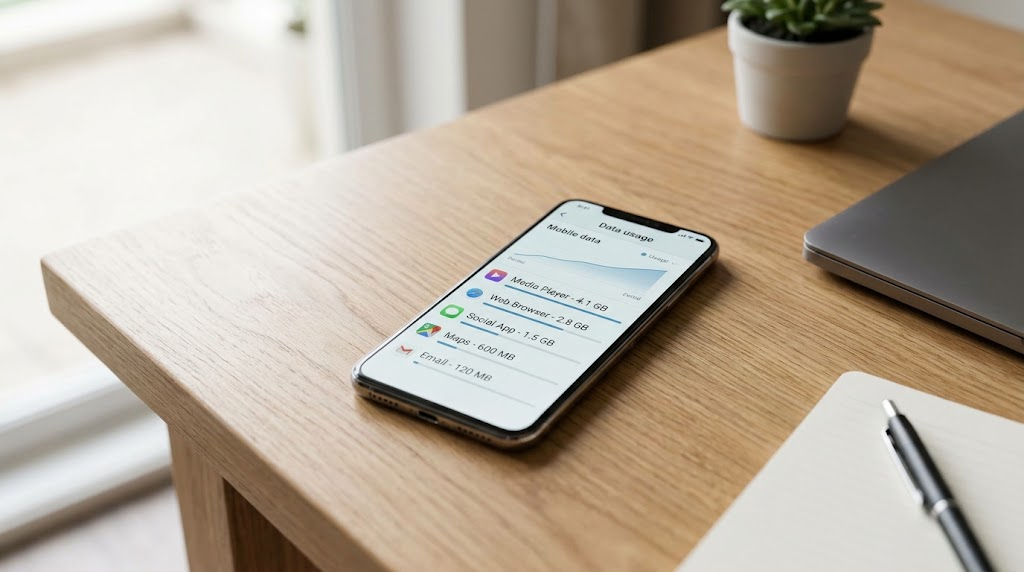
Quick Answer: Why Is Your Phone Using So Much Mobile Data?
Your phone may be consuming more cellular data because an application or system service is transferring information more frequently than usual.
Some activity happens while you are actively using your phone. Other activity can continue when an application is not visible on the screen.
See Also: Why Does My Phone Screen Turn On by Itself or Keep Restarting?
Common explanations include:
- Video streaming: Watching videos or allowing social-media clips to play automatically can consume substantial amounts of data.
- Cloud synchronization: Photo, video, and file-storage services may upload or download content using cellular connections.
- Application updates: Apps and games may download updates when mobile-data downloads are permitted.
- Background activity: Messaging, email, cloud services, and other applications may communicate with servers while you are doing something else.
- Mobile hotspots: Computers, tablets, and other connected devices may use your phone’s cellular connection.
- Automatic media downloads: Messaging apps may download photos, videos, and other attachments without requiring you to open each file.
- System activity: Operating-system services and certain downloads may contribute to cellular usage.
- Usage-period differences: Your phone’s displayed statistics may cover a different period from your mobile plan.
The quickest way to investigate is to open your phone’s mobile-data settings and find the list showing data consumption by application.
See Also: How to Stop Spam Calls and Robocalls: Carrier Tools + Phone Settings
On many Android phones, this information appears under Settings in a section called Data usage or Mobile data usage.
On an iPhone, open Settings > Cellular, or Settings > Mobile Data in regions where that terminology is used.
Look for applications with unusually high consumption, but check the reporting period before drawing conclusions.
For example, an app showing substantial usage over several months may be behaving normally. The same amount of usage over a single afternoon could deserve closer attention.
The goal is to find out what consumed the data, when it happened, and whether it matches your normal phone activity.
Common Reasons Your Mobile Data Is Disappearing Quickly
A sudden increase in mobile data usage often results from changes in application behavior, device settings, or how frequently you use particular services.
The following causes are worth checking before assuming something is wrong with your phone.
Video Streaming and Social-Media Autoplay
Video is one of the most common explanations for unexpectedly high mobile-data consumption.
Streaming services transfer video and audio content continuously while you watch. Higher-quality video generally requires more data than lower-quality playback.
Social-media applications can also consume data through automatic video playback.
For example, scrolling through a feed containing numerous videos may trigger repeated downloads even when you do not intentionally open each clip.
Some applications preload content to make playback feel faster.
To investigate, open your phone’s data-usage report and look for streaming services, video-sharing platforms, and social-media applications near the top.
Then open the application’s own settings and check for options such as:
- Data Saver or reduced data usage.
- Video playback quality.
- Autoplay preferences.
- Downloads over Wi-Fi only.
- Offline video downloads.
The available controls depend on the application.
If a particular streaming app is responsible for most of the increase, lowering video quality or avoiding cellular streaming may make a noticeable difference.
Automatic App Updates and Downloads
Apps are updated regularly to introduce features, fix problems, and improve security.
Depending on your operating system and app-store settings, some downloads may be allowed over cellular data.
Large applications and games can contribute significantly to unexpected consumption, especially when several updates occur close together.
On Android, open Google Play Store and review its network preferences.
The exact location may vary with the Play Store version, but automatic update preferences are generally available through the account profile and Settings.
Look for the option controlling automatic app updates and whether downloads are permitted over mobile networks.
Google provides official guidance through Google Play Help.
On iPhone, review the App Store settings for cellular downloads and automatic updates.
Depending on your iOS version, these controls may appear under Settings > Apps > App Store or directly under App Store settings.
Be aware that restricting cellular updates can delay important security fixes until your phone connects to Wi-Fi.
A sensible approach is to allow updates over a trusted Wi-Fi connection while keeping automatic security maintenance enabled where possible.
Cloud Photos and File Synchronization
Cloud-storage services can create substantial data transfers.
Examples include Google Photos, iCloud Photos, Google Drive, OneDrive, Dropbox, and other file-sync applications.
These services may upload newly captured photos, synchronize videos, or download files stored in the cloud.
If you recently recorded several videos, imported a large photo library, or restored files from another device, cloud synchronization may explain the increase.
Whether those transfers use mobile data depends on your settings and the service involved.
For iPhone users, check the cellular-data options associated with Photos and other cloud services.
For Android users, open the relevant cloud application’s settings and review backup or synchronization preferences.
For example, Google Photos includes backup settings that can control how cellular data is used.
You can find official instructions in Google Photos Help.
Before disabling synchronization entirely, consider whether you depend on cloud backups to protect important photos and files.
Restricting cellular uploads may be preferable to turning backups off.
Messaging Apps Downloading Photos and Videos
Messaging applications can download more than text messages.
Group conversations may contain videos, voice recordings, photographs, documents, and other attachments.
Some messaging services automatically download media when it becomes available.
If you participate in active group chats, these downloads can accumulate without requiring you to open every attachment.
Check the data-usage figures for messaging apps such as WhatsApp, Telegram, Signal, and other services you use.
Then inspect the application’s media-download settings.
Where supported, you may be able to allow automatic downloads on Wi-Fi while restricting them on cellular connections.
Remember that limiting downloads may mean you need to manually retrieve photos, videos, or documents when away from Wi-Fi.
Background App Refresh and Synchronization
Applications sometimes communicate with online services even when they are not displayed on your screen.
This is called background activity.
For example, an email application may check for new messages, a cloud service may synchronize documents, or a messaging application may retrieve information associated with conversations.
Android and iOS manage background activity differently.
The operating system may restrict certain background operations to preserve battery life or reduce network usage.
However, not all background communication can be eliminated by one setting.
On Android, some devices show separate foreground and background mobile-data figures for individual applications.
On iPhone, cellular usage can be inspected by application, while Background App Refresh is managed through a separate setting.
High background usage is not automatically abnormal.
The important question is whether the application’s activity makes sense given what it does and how you use it.
Mobile Hotspots and Connected Devices
Your phone may be using cellular data for another device.
When mobile hotspot or tethering is enabled, a connected laptop, tablet, or another phone can access the internet through your cellular connection.
The connected device may then perform its own background activities.
These can include software updates, cloud backups, video streaming, and file synchronization.
A laptop downloading a large update through your hotspot can cause your mobile allowance to decrease quickly.
To investigate, open your phone’s hotspot settings and check whether sharing is enabled.
On Android, hotspot controls are commonly found under network or connection settings.
On iPhone, check Settings > Personal Hotspot, where supported by your carrier and plan.
If your phone shows connected devices, review them.
Disconnect devices you do not currently need and disable hotspot sharing when it is not in use.
If you notice an unfamiliar connection, review your hotspot password and sharing settings.
Operating-System Downloads and App Installations
Operating-system maintenance can also involve substantial downloads.
A phone may download system software, application components, language resources, or other required files.
Whether these transfers occur through cellular data depends on the operating system, connection settings, carrier restrictions, and device capabilities.
For example, Apple supports certain software-update downloads over cellular connections under applicable conditions, including supported 5G settings.
However, this does not mean every iPhone automatically downloads full operating-system updates over mobile data.
Android behavior also varies by manufacturer and software version.
If mobile data increased around the time of a major update or device setup, check recent software and application activity.
Avoid assuming every entry labeled as a system service represents an unnecessary transfer.
Some services are essential to normal operation.
Navigation, Music Streaming, and Other Online Activities
Navigation apps, music services, podcasts, internet calling, and online games can all consume mobile data.
The amount depends on how the application operates.
Navigation apps may download maps, traffic information, and location-related content.
Music and podcast applications may stream content or download episodes for offline playback.
Video calls can transfer both audio and video continuously.
Some games require ongoing network communication or download additional resources after installation.
If you recently traveled, used navigation extensively, listened to more online audio, or made long video calls, compare that activity with your usage report.
Many services offer offline downloads or reduced-data settings.
Downloading content over Wi-Fi before traveling may help reduce cellular consumption.
Dual-SIM Settings and Mobile-Data Selection
Phones supporting multiple SIM cards or eSIM profiles can make data usage harder to interpret.
Your device may have more than one cellular line, but only certain lines may be selected or available for mobile-data service at a particular time.
Some phones can switch the cellular-data line under specific conditions.
On iPhone, dual-SIM users can review their cellular plans and data-line selection under Settings > Cellular or Mobile Data.
On Android, the equivalent settings depend on the manufacturer.
Samsung Galaxy phones commonly provide SIM-related controls through SIM manager settings.
Check which line is currently selected for data and whether automatic switching options are enabled.
If your carrier reports unexpected usage on one line, make sure you are examining the corresponding line and reporting period.
Changing Usage Periods or Billing Cycles
Sometimes the apparent increase is caused by how the usage figures are displayed.
Your phone may show data consumption for a period that does not match your carrier’s billing cycle.
For example, an on-device report might include usage from earlier weeks, while your carrier’s application shows only the current allowance period.
Android devices may support configurable mobile-data cycles.
On iPhone, cellular statistics are generally cumulative until manually reset, rather than automatically matching every carrier’s billing cycle.
Always check the dates associated with a usage figure before assuming that the displayed amount was consumed recently.
Weak Signals and Repeated Network Activity
Poor connectivity can affect how applications communicate.
Interrupted connections may cause some downloads or transfers to retry.
Certain applications may repeatedly attempt to synchronize when connectivity is unstable.
However, weak signal strength does not automatically mean a phone consumes more billable data.
For example, network retransmissions and failed transfers do not necessarily correspond directly to the data counted by your carrier.
If the increase seems associated with a particular location, check whether a specific application repeatedly attempts downloads or synchronization there.
Also consider whether the phone is switching between Wi-Fi and cellular connectivity.
The application’s actual data usage is more informative than signal strength alone.
How to Check Mobile Data Usage on Android
Android provides built-in tools for checking cellular-data consumption.
These tools help identify applications using the most data and, on supported devices, distinguish foreground activity from background transfers.
Important: Android menu names vary across Pixel, Samsung Galaxy, Motorola, Xiaomi, and other devices.
The following instructions describe common routes rather than a universal path.
Find Mobile Data Usage in Android Settings
Start by opening your phone’s Settings application.
On many Google Pixel devices, the relevant controls are available through:
Settings > Network & internet > SIMs > App data usage
The exact wording and intermediate screens can differ by Android version.
On many Samsung Galaxy devices, try:
Settings > Connections > Data usage > Mobile data usage
Samsung may organize the options differently depending on the Galaxy model and One UI version.
If these routes do not match your phone, use the search function inside Settings.
Search for terms such as “Data usage,” “Mobile data usage,” or “Network & internet.”
Select the result showing cellular consumption.
Google maintains Android support information at Android Help.
Samsung provides device-specific instructions through Samsung Support.
Identify Apps Using the Most Data
Once you reach the mobile-data usage screen, look for a list of applications.
Many Android devices display the applications alongside the amount of cellular data each has consumed.
Some interfaces include a graph showing usage over time.
Review the highest-consuming applications first.
Do not assume the app at the top is responsible for an unexplained spike.
A browser or streaming service may naturally use more data than a simple utility application.
Instead, compare the usage with your recent behavior.
Ask whether you watched videos, downloaded files, used navigation, shared a hotspot, or synchronized cloud content during the displayed period.
Check Foreground and Background Data
On Android devices that provide this information, tapping an application opens a more detailed usage screen.
You may see separate figures for:
Foreground data: Cellular data consumed while the application was actively being used or running in the foreground.
Background data: Cellular data attributed to the application while it was operating in the background.
These categories can help narrow your investigation.
For example, high foreground usage in a video application may correspond to streaming.
High background usage in a cloud-storage app may reflect uploads or synchronization.
However, the distinction is not a complete record of every network request, and Android implementations can differ.
A system process may also perform work on behalf of another component.
Treat the figures as diagnostic clues rather than a perfect explanation of every transfer.
Check the Date Range
Before comparing applications, inspect the reporting period.
Some Android devices allow you to select a date range or configure the mobile-data cycle.
If your carrier renews your allowance on a particular day, aligning the device’s monitoring period with that date may make comparisons easier.
Not every Android version presents these controls in the same way.
Also check whether the statistics are associated with the correct SIM or eSIM.
If your phone supports multiple cellular plans, the selected line matters.
Investigate an Application That Looks Unusual
If one application shows more consumption than expected, open its detailed settings.
Look for background-data controls, unrestricted-data permissions, and other network options where available.
Before changing them, identify the application and consider its purpose.
For example, disabling background data for a cloud-backup app could prevent timely uploads.
Restricting a messaging application may delay some background activity.
A measured investigation is more useful than turning off background data for every application.
For more information about background-data behavior, see Google’s background-data guidance.
How to Check Cellular Data Usage on iPhone
Apple provides cellular-data statistics directly in iPhone settings.
These statistics can help identify which applications and system services have consumed cellular data.
Apple also cautions that your carrier is the appropriate source for the most accurate information about current-period cellular usage.
Open Cellular Data Settings
On your iPhone:
- Open Settings.
- Tap Cellular or Mobile Data, depending on your region.
- Scroll to the section showing cellular-data usage.
- Review the applications listed and their reported consumption.
Applications generally have individual cellular-data controls.
The displayed figures indicate how much cellular data has been attributed to each app during the relevant statistics period.
If you see an application with unexpectedly high consumption, compare it with how frequently you use that app.
Apple explains these controls in its official guide: View or change cellular data settings on iPhone.
Check Individual App Usage
The cellular settings screen lists applications that have used cellular data.
The exact presentation can vary by iOS version.
Scroll through the list and pay attention to applications that do not match your expectations.
For example, a video application may account for substantial usage if you regularly stream content away from Wi-Fi.
A document-storage application may show higher consumption after a large synchronization.
You can disable cellular-data access for selected applications using their switches.
When cellular access is turned off for an app, it generally must use Wi-Fi for its internet data transfers.
This can be useful for apps that do not need continuous connectivity.
However, the app may be unable to refresh content or perform certain tasks until Wi-Fi becomes available.
Review System Services
On supported iOS versions, the cellular settings screen includes a System Services section.
This shows cellular data associated with various system functions.
You may see categories related to operating-system services rather than ordinary installed applications.
These figures can help explain why total cellular usage exceeds the combined usage you initially notice among familiar apps.
System-service categories should not automatically be treated as suspicious.
Some are associated with essential device functions.
Avoid attempting to disable unfamiliar system services without understanding their purpose.
Understand the Statistics Period
One of the most important details on iPhone is the statistics period.
The cellular-data figures displayed by iOS do not necessarily represent your current carrier billing cycle.
They can accumulate until you reset the statistics.
Near the bottom of the Cellular or Mobile Data settings screen, iOS provides information about the statistics period and an option to reset statistics.
If you want to monitor usage over a new period, record the existing figures before resetting them.
You can then compare subsequent usage with your activity.
Resetting cellular statistics does not reset your carrier’s billing records or restore your data allowance.
It only resets the relevant usage counters on the device.
Compare the Figures With Your Carrier
Apple recommends contacting your carrier for the most accurate information about cellular usage during the current period.
Your provider’s application, account portal, or official support service may show data associated with your plan.
If the carrier’s numbers differ from your iPhone’s counters, first compare the reporting dates and selected cellular line.
Do not assume either display covers exactly the same period.
For official instructions, consult Apple’s cellular-data settings guide.
How to Identify Apps Using Data in the Background
Background mobile data usage means an application transfers information using cellular connectivity while it is not actively displayed in the foreground.
This can happen even when your phone’s screen is off.
Background activity is a normal part of modern smartphone operation.
Applications may need to synchronize information, check for updates, or complete previously started transfers.
What Normal Background Activity Looks Like
Consider a few everyday examples.
A cloud-storage application may upload files after you save them.
An email client may synchronize messages.
A messaging application may communicate with its service to support message delivery.
A photo-backup app may upload newly captured pictures when your settings allow cellular backups.
Some applications also download content in advance to improve responsiveness.
These activities can occur without you actively opening the application.
That does not make them malicious.
When Background Usage Deserves Attention
Background activity becomes worth investigating when it differs significantly from your expectations.
For example, you might notice that a rarely used application accounts for a large share of your recent cellular consumption.
Or a cloud service might continue transferring data after you believed synchronization had finished.
In these situations, check the application’s settings and recent activity.
Look for pending uploads, downloads, backups, or newly enabled features.
Also consider whether the app was recently installed or updated.
An update may introduce a new function or change how content is synchronized.
However, a change in consumption does not, by itself, prove that the update caused the increase.
Android Background Data Controls
Android commonly provides per-app background-data controls.
On supported devices, open the application’s data-usage details and look for an option related to background data.
Disabling this permission may reduce the application’s ability to use cellular data in the background.
The result depends on the app and operating-system behavior.
Some notifications, updates, or synchronization tasks may be delayed.
Android also provides Data Saver, which can restrict background mobile-data activity more broadly.
iPhone Background Activity Controls
On iPhone, cellular-data access and Background App Refresh are separate controls.
You can restrict an application’s cellular connectivity under Settings > Cellular or Mobile Data.
Background App Refresh can generally be managed through:
Settings > General > Background App Refresh
This feature allows supported applications to refresh certain content while they are not actively in use.
Turning it off can reduce some background activity.
However, it does not guarantee that every background network operation will stop.
For example, system services and certain notification mechanisms operate differently from ordinary app refresh.
If your goal is to prevent a specific app from using cellular data, its cellular-data switch is generally the more direct control.
How to Reduce Mobile Data Usage Without Breaking Important Features
Once you know which apps are responsible, you can make targeted changes.
The most effective approach is usually to restrict optional data transfers while preserving important communication, security, and backup functions.
Restrict Cellular Data for Selected Applications
Start with applications that consume substantial data but do not need a mobile connection.
On iPhone, open Settings > Cellular or Mobile Data and turn off cellular access for selected applications.
On Android, review the application’s data-usage settings.
Some Android devices provide controls for background data rather than a universal switch that blocks all cellular access.
Manufacturer-specific features may offer additional restrictions.
Do not assume that disabling background data prevents an app from using cellular data when you open it.
Restricting an app can prevent updates, downloads, or synchronization until the appropriate connection becomes available.
Enable Android Data Saver
Android’s Data Saver feature is designed to help reduce mobile-data usage.
On many Android devices, it limits background cellular activity for applications.
Some apps may still use data when actively opened.
The setting is commonly available in network or data-usage settings.
On Pixel devices, look for Data Saver under Network & internet.
On Samsung devices, look within Connections and Data usage.
The exact location depends on the software version.
Android may also allow selected applications to use data without the usual Data Saver restrictions.
This can be useful for apps whose background connectivity is important.
For example, you may want to preserve timely activity for a particular service while restricting less important applications.
See Android Help for current device guidance.
Use Low Data Mode on iPhone
Apple provides Low Data Mode to help reduce network data usage.
Depending on the connection type and settings, Low Data Mode can reduce background network activity and affect certain automatic transfers.
For cellular connections, open Settings > Cellular or Mobile Data.
On supported configurations, select Cellular Data Options or the relevant data-mode setting.
The available controls depend on your iPhone, iOS version, carrier, and network capabilities.
Apple describes Low Data Mode in its official support documentation: Use Low Data Mode on your iPhone and iPad.
Low Data Mode may reduce activities such as automatic downloads and background network use.
However, it is not a guarantee that all cellular data consumption will stop.
Review Video Autoplay and Streaming Quality
If streaming applications dominate your usage report, adjust their settings first.
Many video and social-media services provide options for reduced data consumption.
These may include lower streaming quality, disabling autoplay, or downloading media over Wi-Fi.
Not every application uses the same terminology.
Review the settings of the specific apps responsible for your consumption.
Reducing video quality is often less disruptive than blocking the app’s cellular connectivity entirely.
Adjust Cloud-Photo Backup Settings
Photo and video backups can be valuable, especially if your phone is lost or damaged.
Disabling backups completely may create an unnecessary risk of losing important content.
Instead, review whether your cloud service allows cellular uploads to be restricted.
Where supported, select Wi-Fi-only backups or limit cellular transfers.
Then confirm that backups complete when you reconnect to Wi-Fi.
If you regularly travel without Wi-Fi, consider whether delaying uploads is acceptable for your needs.
Review Automatic Application Updates
App updates are important for security and reliability.
However, large downloads do not always need to occur over cellular networks.
On Android, review Google Play’s automatic update preferences.
On iPhone, inspect App Store settings related to cellular downloads and automatic updates.
Where supported, prefer Wi-Fi for large application downloads.
Remember to connect to a trusted network periodically so that important updates are not delayed indefinitely.
Control Mobile Hotspot Usage
If you use your phone as a hotspot, consider the activity of every connected device.
A computer can consume mobile data through background updates or synchronization even when you are not actively browsing.
Disconnect devices when they are not needed.
Review hotspot-sharing settings and use an appropriate password.
If your phone supports limits or warnings for mobile-data usage, configure them according to your plan.
Monitor Your Actual Data Allowance
Finally, compare your phone’s usage report with the dates relevant to your mobile plan.
Some Android devices provide data warnings or limits.
Carrier applications may provide additional information about remaining allowances.
Use official carrier tools rather than relying on unsolicited messages or unfamiliar websites.
Checking usage periodically can help you recognize changes before they become significant.
What to Do When an App Uses an Unexpected Amount of Data
Finding a high-consuming application is the beginning of an investigation, not necessarily the conclusion.
An application can use more data than expected for legitimate reasons.
The next step is to establish what it is and why it may have transferred information.
Confirm the Exact Application Name
Start by identifying the application accurately.
Some apps use unfamiliar technical names in usage reports.
Others appear under the developer’s name or a system-related label.
Do not delete an application simply because you do not recognize its name.
It may be an essential system component or part of a legitimate service.
On Android, open the application’s information page in Settings.
On iPhone, review the installed app and its associated information where available.
Check What the Application Does
Consider whether the application’s purpose explains its network activity.
For example, a photo editor with cloud-storage features may synchronize edited images.
A navigation application may download maps.
A messaging application may retrieve attachments.
A browser may account for downloads initiated through websites.
Look for the app’s official documentation and settings.
For unfamiliar third-party apps, check their listing in the Google Play Store or Apple App Store, where available.
Review the developer identity and intended functionality.
Avoid relying exclusively on random forum claims or advertisements.
Review Recent Activity
Ask whether anything changed shortly before the increase.
Did you install the application recently?
Did you enable a new feature?
Did you import files or restore a backup?
Did you start downloading offline content?
Did someone use your phone’s hotspot?
These details can help explain an otherwise surprising figure.
If the application provides a transfer history or backup status, inspect it.
Check Updates and Permissions
Review whether the application was recently updated, where update history is available.
An update may introduce new network-dependent features.
Also inspect permissions relevant to the application’s purpose.
For example, access to photos may make sense for a photo-backup service.
Permissions do not reveal exactly how much data an application transfers, but they can help you understand its capabilities.
Be cautious about apps requesting powerful access that seems unrelated to their advertised functions.
Apply One Change and Monitor the Result
Instead of changing multiple settings at once, test one reasonable adjustment.
For example, restrict cellular backups for a cloud-storage application.
Then monitor the application’s data consumption over a comparable period.
If usage decreases as expected, you have stronger evidence that the setting affected the behavior.
If consumption remains unexplained, continue investigating.
This method is more reliable than disabling numerous services and guessing which change helped.
Could Spyware Be Using Your Mobile Data?
Yes. Some malicious applications, including spyware, can communicate with remote servers and transfer information over an internet connection.
However, high mobile-data usage alone cannot establish that spyware is installed.
See Also: How to Tell If Your Phone Has Spyware: Realistic Signs and What to Do
Legitimate applications regularly send and receive information for synchronization, updates, messaging, and other functions.
A large usage figure cannot tell you what the transferred information contained.
It also cannot establish whether someone is monitoring your phone.
What Would Make a Security Investigation More Reasonable?
An unexpected data increase may deserve additional security checks when it appears alongside other concerning evidence.
Examples include:
- An unfamiliar application requesting extensive permissions unrelated to its stated purpose.
- Unexpected device-management or accessibility configurations.
- A credible warning from a built-in security service.
- An application installed from an untrusted source that behaves unexpectedly.
- Account-security alerts indicating activity you do not recognize.
These observations still require interpretation.
Some legitimate accessibility tools, workplace management applications, and security services use powerful permissions.
Their presence is not proof of surveillance.
Check Google Play Protect on Android
Google Play Protect is Google’s built-in protection system for Android applications.
It checks applications for potentially harmful behavior and can warn users about identified risks.
To review Play Protect, open the Google Play Store.
Tap your profile icon and select Play Protect.
You can review the available security status and scanning options.
The interface may vary by version.
Google explains the service in its official documentation: Help protect against harmful apps with Google Play Protect.
Play Protect is a useful security layer, but no scanner can guarantee detection of every malicious application.
A clean scan should not be treated as absolute proof that a device is free of every possible threat.
Review iPhone Security Settings
On iPhone, investigate unfamiliar applications and unexpected configuration profiles or device-management settings.
You can review installed profiles, where present, under:
Settings > General > VPN & Device Management
The appearance of a management profile does not automatically indicate malicious activity.
Schools, employers, and organizations may legitimately manage devices.
If you do not recognize a profile, determine who installed it and why before taking action.
You can also review application permissions in Settings > Privacy & Security.
If you have concerns about microphone or camera access, a separate camera and microphone privacy guide can help you understand the relevant indicators and permission controls.
For broader warning signs and investigation methods, consult our comprehensive guide to checking whether your phone has spyware.
Avoid Fake Security Warnings
Be cautious of websites or advertisements claiming that your phone is infected simply because you are using large amounts of data.
A webpage generally cannot diagnose spyware by observing your mobile-data allowance.
Do not install unfamiliar security applications from pop-ups or unsolicited messages.
Use built-in protections, official app stores, and reputable security resources.
If you have credible evidence of device compromise, consider seeking assistance from a qualified security professional.
Unexpected data consumption is a reason to inspect your phone’s activity, not a diagnosis of surveillance.
Why Your Phone’s Data Figure Might Not Match Your Carrier’s Records
It is possible for your phone to display a different data figure from the one shown by your mobile provider.
This does not necessarily mean the carrier has made an error.
The two systems may measure or present usage differently.
The Reporting Period May Be Different
Your phone’s statistics may cover a different period from your carrier’s records.
On iPhone, the displayed cellular statistics can accumulate until you reset them.
On Android, the usage report may follow a selected data cycle.
Your provider may calculate allowances according to a separate renewal schedule.
Always compare figures covering the same dates.
Dual-SIM Settings Can Complicate Comparisons
If your device supports multiple SIM cards or eSIM plans, confirm which cellular line you are reviewing.
One line may be configured for mobile data while another handles calls or messages.
Some devices support cellular-data switching under specific conditions.
Make sure the provider’s usage record corresponds to the correct plan.
Device Counters and Carrier Accounting Can Differ
Your phone estimates or records cellular usage through its operating system.
Your carrier accounts for traffic through its network and billing systems.
These methods do not necessarily produce identical figures.
Differences can arise from measurement methods, reporting delays, accounting rules, and how usage is attributed.
The phone’s application-level report is particularly useful for identifying likely sources of consumption.
The carrier’s official records are more appropriate for questions about your billed usage or remaining allowance.
Apple explicitly advises users to contact their carrier for the most accurate current-period cellular usage information.
See Apple’s cellular-data documentation.
What to Do About a Large Discrepancy
First, check that both reports cover the same period and cellular line.
Then review hotspot activity, application downloads, and recent device changes.
If the difference remains unexplained, contact your carrier through its official application, website, or support number.
Ask which period the reported usage covers and whether more detailed records are available.
Do not assume that resetting your phone’s statistics will correct a carrier billing issue.
A Practical Checklist for Investigating High Mobile Data Usage
If your mobile data is disappearing unusually quickly, follow this procedure before making major changes.
- Check your mobile-data usage report. Open the relevant Android or iPhone settings and identify the applications consuming the most cellular data.
- Confirm the reporting period. Make sure the displayed figures cover the dates you want to investigate.
- Review the highest-consuming apps. Compare their usage with recent streaming, downloads, backups, navigation, and messaging activity.
- Inspect background activity. On Android, review foreground and background figures where available. On iPhone, check cellular access and relevant background settings.
- Check hotspots and automatic downloads. Look for connected devices, cloud synchronization, app updates, and automatic media downloads.
- Make one targeted adjustment. Restrict optional cellular transfers for an app that does not need them.
- Monitor the result. Compare usage over a similar period to determine whether the change helped.
- Investigate unresolved discrepancies. Review unfamiliar applications, relevant security settings, and your carrier’s official usage records.
This approach helps identify the actual cause while reducing the risk of disabling useful features unnecessarily.
Frequently Asked Questions
Why Is My Mobile Data Finishing So Quickly?
Your mobile-data allowance may be decreasing rapidly because of video streaming, social-media autoplay, cloud backups, application updates, automatic downloads, or hotspot activity.
Background synchronization can also contribute.
Check your phone’s per-app cellular-data report to identify the largest consumers.
Make sure the statistics cover the period in which you noticed the increase.
How Can I See Which App Uses the Most Data?
On Android, open Settings and search for Mobile data usage or Data usage.
On many Pixel devices, the information is available under Network & internet and SIM settings.
On Samsung Galaxy phones, look under Connections > Data usage.
On iPhone, open Settings > Cellular or Mobile Data and scroll to the application usage list.
The displayed figures show which applications account for the most cellular consumption during the relevant reporting period.
What Does Background Mobile Data Usage Mean?
Background mobile data usage refers to cellular transfers occurring while an application is not actively displayed in the foreground.
Examples include cloud synchronization, email updates, and certain application downloads.
Background communication is normal for many applications.
It becomes worth investigating when the amount is unexpected or does not match the application’s purpose.
How Do I Stop an App From Using Mobile Data?
On iPhone, open Settings > Cellular or Mobile Data and disable cellular access for the selected application.
On Android, review the application’s mobile-data settings.
Many Android phones allow background data to be restricted, while additional controls depend on the manufacturer.
Disabling background data does not necessarily prevent an Android application from using cellular data while you actively open it.
Be aware that restrictions may delay downloads, synchronization, or some notifications.
Why Is My Phone Using Data When I Am Not Using It?
Your phone can transfer information even when the screen is off.
Messaging services, cloud backups, synchronization tools, downloads, and certain system functions may operate in the background.
A connected hotspot device may also use your cellular connection.
Check your usage report and relevant application settings to determine whether the activity is expected.
Can Spyware Consume Mobile Data?
Yes. Some spyware can use internet connectivity to communicate with remote systems.
However, ordinary applications also transfer information over cellular networks.
High data consumption does not prove that spyware is present.
Security concerns should be evaluated using additional evidence, such as unfamiliar applications with inappropriate permissions, unexpected management settings, or credible security warnings.
Why Does My Phone’s Data Counter Differ From My Carrier’s Records?
Your phone and carrier may use different reporting periods or accounting methods.
On iPhone, cellular statistics can accumulate until manually reset.
Android devices may use configurable usage cycles.
Dual-SIM configurations can also complicate comparisons.
For questions about billed usage or remaining allowances, consult your carrier’s official records.
Should I Disable Background Data for Every App?
Usually not.
Restricting every application’s background activity can interfere with synchronization, downloads, and some notifications.
It may also delay services you depend on.
A better approach is to identify which applications consume the most data and restrict unnecessary activity selectively.
Keep essential communication, security, and backup requirements in mind.
Does Using Wi-Fi Always Mean an App Cannot Use Mobile Data?
No.
Phones can sometimes use cellular data despite having Wi-Fi enabled.
For example, an iPhone may use cellular data through Wi-Fi Assist when Wi-Fi connectivity is poor, subject to Apple’s conditions and restrictions.
Some Android devices provide manufacturer-specific features that can switch to mobile data when Wi-Fi connectivity is inadequate.
If you want to investigate cellular use while connected to Wi-Fi, check the relevant connection-assistance settings.
You can also temporarily disable cellular data as a controlled test, provided you do not need it for an essential service.
Apple documents Wi-Fi Assist here: About Wi-Fi Assist.
Can a Weak Mobile Signal Cause Higher Data Usage?
Poor connectivity can cause some applications to retry interrupted transfers or repeat synchronization attempts.
However, a weak signal does not automatically increase the amount of data billed by your carrier.
The effect depends on the application, network behavior, and how traffic is counted.
If you suspect connection problems, inspect the actual app-usage figures rather than relying on signal strength alone.
Does Turning On Data Saver Stop All Background Data?
No.
Android Data Saver is designed to limit certain background mobile-data activity.
It does not necessarily block all cellular transfers.
Applications may still use data when actively opened, and some services or permitted apps can continue background communication.
The precise behavior depends on your device and settings.
Will Resetting Mobile Data Statistics Reduce My Bill?
No.
Resetting your phone’s usage counters only changes the statistics displayed on the device.
It does not erase data already recorded by your mobile provider.
It also does not restore your allowance.
Use the reset function to begin a new monitoring period, not to change carrier accounting.
Can Cloud Backups Use Mobile Data Without Me Opening the App?
Yes, if the cloud service and your device settings permit cellular backups or synchronization.
For example, a photo-backup service may upload newly captured images after they are created.
Check the application’s backup settings to determine whether mobile-data transfers are enabled.
Restricting cellular backups can reduce usage, but uploads may be delayed until Wi-Fi becomes available.
Can a Mobile Hotspot Use Data When My Phone Screen Is Off?
Yes.
Depending on your phone’s hotspot behavior and connection settings, a connected device may continue using the cellular connection while your phone’s screen is off.
For example, a laptop connected to your hotspot may synchronize cloud files or download updates.
If you notice unexpected consumption, check whether hotspot sharing is active and whether other devices are connected.
Is High Mobile Data Usage a Sign That My Phone Has Been Hacked?
Not by itself.
High usage can result from normal activities such as streaming, backups, downloads, and synchronization.
A security investigation becomes more appropriate when unusual consumption appears alongside credible evidence of unauthorized activity.
Review the relevant applications, permissions, and security warnings before drawing conclusions.
Conclusion: Take Control of Your Mobile Data Usage
If your phone is using too much mobile data, the most useful first step is to identify which applications and services are responsible.
Android and iPhone both provide built-in cellular-data reports that can help you investigate unexpected consumption.
Start by checking the reporting period and the applications using the most data.
Then review video streaming, cloud backups, automatic downloads, background synchronization, and mobile hotspot activity.
Once you identify a likely cause, make a targeted adjustment and monitor the results.
Features such as Android Data Saver and Apple’s Low Data Mode can help reduce unnecessary transfers, but restricting every application is rarely the best solution.
If the figures do not match your mobile provider’s records, compare the dates and cellular lines before contacting your carrier through an official support channel.
Finally, remember that unusual mobile-data consumption is not proof of spyware.
If you also notice unfamiliar applications, unexpected permissions, or credible security warnings, further investigation may be appropriate.
Our comprehensive guide to checking whether your phone has spyware explains how to evaluate those concerns without relying on a single symptom.
You can also consult our battery-drain and overheating guide if unusual data usage occurs alongside other device-performance problems.
The most reliable solution is to use your phone’s own usage reports, investigate the applications responsible, and adjust settings based on evidence rather than guesswork.