Is your phone battery draining fast, even when you barely use it? Does your phone feel unusually hot while charging, browsing, or sitting idle?
Rapid battery drain and overheating can have several explanations. Demanding applications, weak cellular reception, background synchronization, software updates, charging conditions, and battery aging can all contribute.
READ ALSO: Why Does My Phone’s Camera or Microphone Indicator Turn On Randomly?
Although malicious software can sometimes affect battery consumption, these symptoms alone do not mean someone has compromised your phone.
The best place to start is your phone’s battery-usage information. By checking which applications consume power and when the device becomes warm, you can narrow down the possible causes and choose an appropriate fix.
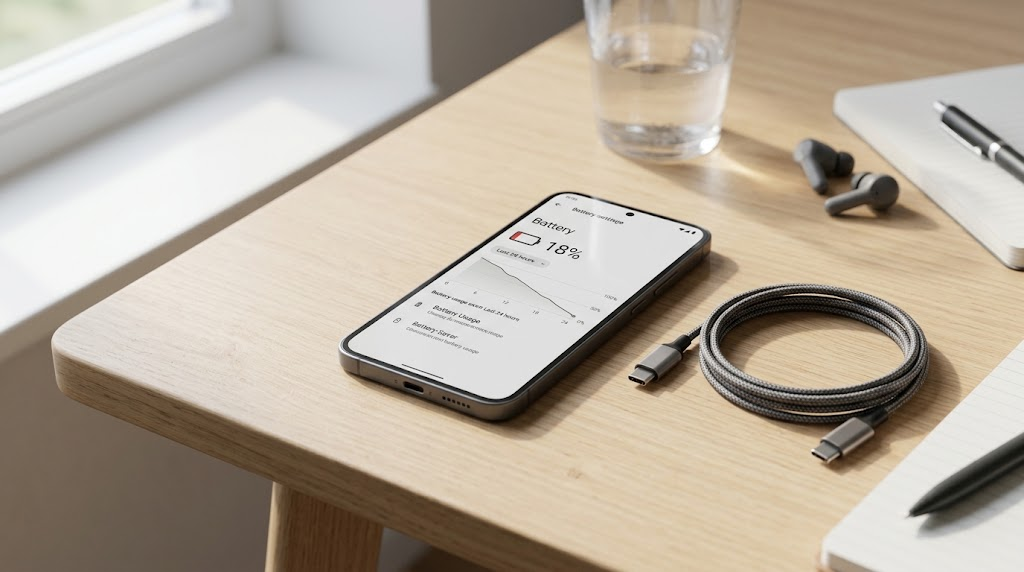
Quick Answer: Why Is Your Phone Battery Draining So Fast?
Your phone battery may be draining quickly because an application is using excessive power, the screen is consuming more energy than usual, the cellular connection is weak, or the battery has lost capacity as it ages.
If your phone also feels hot, it may be performing demanding tasks, charging under unfavorable conditions, or struggling with a software or hardware problem.
READ ALSO: Phishing 101: How to Spot Scam Emails, Texts, and DMs
The most common explanations include:
- Power-intensive apps: Games, navigation, video calls, and camera applications can consume substantial battery power.
- Background activity: Cloud backups, application updates, and synchronization may continue when you are not actively using the phone.
- Weak cellular reception: Your phone may use additional power maintaining or searching for a network connection.
- Display settings: High brightness and extended screen-on time increase energy consumption.
- Battery aging: An older battery may no longer hold as much charge as it did when new.
- Recent software changes: Updates, temporary background processing, or application bugs can affect power consumption.
- Charging and temperature conditions: Heat during charging can affect charging behavior and battery performance.
Start by opening your phone’s battery settings and reviewing recent usage.
On many Android devices, look under Settings > Battery > Battery usage. On iPhone, open Settings > Battery.
The exact Android menu names vary by manufacturer and software version.
If one application accounts for an unexpectedly large amount of battery use, investigate it before changing unrelated settings.
If the phone remains unusually hot even when idle, or you notice physical damage or swelling, stop troubleshooting through normal use and seek appropriate professional assistance.
Common Reasons a Phone Battery Drains Quickly
There is no single explanation for every battery problem.
A phone that loses charge rapidly during gaming may be behaving normally under a heavy workload. A phone that becomes hot while sitting untouched overnight requires a different investigation.
Understanding the possible causes can help you distinguish expected battery consumption from behavior worth investigating.
Battery Aging and Reduced Battery Capacity
Smartphones use rechargeable lithium-ion batteries.
Over time, these batteries gradually lose their ability to store energy. Battery aging is influenced by factors including charge cycles, temperature exposure, storage conditions, and usage patterns.
As battery capacity decreases, your phone may need charging more frequently even if your daily habits have not changed.
For example, a phone that previously lasted comfortably through the day might begin requiring an afternoon charge after several years of use.
Other possible signs include unexpected shutdowns or noticeable performance changes.
However, battery aging does not automatically explain persistent overheating.
If an older phone becomes unusually hot while performing simple tasks, other causes may also need investigation.
Apple provides information about battery aging and performance in its official iPhone Battery and Performance documentation.
On supported devices, battery-health information can help determine whether reduced capacity may be contributing to the problem.
Resource-Intensive Applications
Some applications demand considerably more processing power than others.
Modern smartphones contain processors, graphics components, wireless radios, and other hardware that consume energy while performing tasks.
Applications that continuously use these components can drain the battery faster and generate heat.
Common examples include mobile games, augmented-reality applications, video-editing tools, and applications that perform intensive calculations.
An application can also consume excessive power because of a software bug.
For instance, an app might repeatedly attempt a failed synchronization task or continue processing information after you stop using it.
The important question is whether the battery consumption matches what the application was doing.
A navigation app using substantial battery during a long journey is expected. The same app consuming significant power while apparently unused deserves a closer look.
Video Streaming, Gaming, Navigation, and Camera Use
Several ordinary smartphone activities combine multiple power-intensive functions.
Video streaming uses the display, processor, and network connection.
Gaming can place sustained demands on the processor and graphics hardware.
Navigation applications may use location services, mobile data, and the screen simultaneously.
Recording high-resolution video can also require considerable processing power.
These activities may cause your phone to feel warm, particularly during prolonged use.
Battery consumption can increase further when several demanding activities happen together.
For example, using navigation while charging your phone in a sunlit vehicle can create more heat than using navigation alone.
If your phone cools down after the activity stops and battery consumption returns to normal, the behavior may be related to the workload rather than a malfunction.
Weak Cellular Reception
Poor network reception is another important cause of battery drain.
Your phone uses energy to communicate with nearby cellular towers.
When reception is weak, it may increase transmission effort or repeatedly search for and reconnect to available networks.
This activity can increase power consumption.
You may notice the problem in underground parking areas, remote locations, elevators, or buildings with limited cellular coverage.
A weak connection can also affect battery life when the screen is off.
For example, a phone left overnight in an area with unreliable reception may consume more power than the same phone connected to a strong network.
If the problem happens mainly in one location, network conditions are worth investigating.
Where practical, try using a reliable Wi-Fi connection or moving to an area with better reception.
Airplane Mode can also help isolate cellular-related battery consumption during a controlled test, provided you do not need calls, messages, or other connectivity.
Remember that Airplane Mode can prevent important communications, including some emergency alerts.
Background Synchronization and Cloud Backups
A phone does not stop working completely when you lock its screen.
Applications and system services may continue performing useful tasks.
These can include receiving messages, uploading photographs, synchronizing email, downloading updates, and maintaining certain connections.
Some background activity is essential for normal operation.
However, intensive or repeated background processing can increase battery consumption.
For example, a photo application uploading a large collection of images may use considerable power, especially over a cellular connection.
A cloud backup may also require processing and network activity.
Similarly, an application experiencing synchronization failures might repeatedly retry an operation.
If your battery started draining quickly after transferring data to a new phone, restoring a backup, or enabling cloud photo synchronization, these activities may be contributing.
Check whether the activity finishes and whether battery consumption improves afterward.
Avoid disabling every background service indiscriminately. Doing so can interfere with notifications, backups, accessibility functions, and other useful features.
High Screen Brightness and Long Screen-On Time
The display is often a significant contributor to battery consumption.
A brighter screen generally requires more power.
Keeping the display active for long periods can therefore reduce battery life, even when you are performing relatively simple tasks.
This is particularly noticeable outdoors, where automatic brightness may increase screen output to maintain visibility.
A long screen timeout can also waste power if the display remains active after you stop interacting with the phone.
To reduce unnecessary consumption, use automatic brightness where appropriate and shorten the screen-lock interval if it is longer than you need.
Some devices also offer display refresh-rate controls or power-saving modes that reduce display-related energy use.
The available settings depend on the manufacturer and model.
Software Bugs and Recent Updates
If your phone battery started draining unusually fast immediately after an update, the timing may be relevant.
Software updates can introduce new features, modify background behavior, or temporarily trigger processing tasks.
After some updates, a phone may perform activities such as indexing content, reorganizing data, or updating application resources.
These tasks can temporarily increase power consumption.
However, persistent battery drain should not automatically be dismissed as normal post-update behavior.
An application may be incompatible with a new software version, or a software defect may be causing unnecessary activity.
Check for subsequent operating-system and application updates that might address known issues.
Restarting the device can also help when a temporary software process is behaving incorrectly.
If the problem continues, review battery usage to determine whether a particular application is responsible.
Mobile Hotspots and Connectivity Features
Using your phone as a mobile hotspot can consume substantial battery power.
The device must maintain its cellular connection while sharing connectivity with other devices.
Depending on the configuration, it may also operate Wi-Fi networking functions continuously.
Battery consumption can increase when connected devices download large files or stream video.
The phone may also become noticeably warm.
Other connectivity-related activities, such as sustained location tracking or transferring large files, can increase energy use.
Rather than disabling all connectivity features, check whether one is active unnecessarily.
If you no longer need a hotspot, turn it off.
Charging Accessories and Charging Problems
Charging accessories do not usually explain excessive battery consumption while a phone is unplugged.
However, they can contribute to charging difficulties and unusual heat.
A damaged cable, unsuitable charger, dirty connector, or poorly functioning charging accessory may affect charging reliability.
Some phones also become warmer during faster charging or wireless charging.
If your phone loses charge despite being connected to a charger, several explanations are possible.
The charger may not be supplying enough power for the device’s current workload, charging may be interrupted, or the phone may be limiting charging because of temperature.
Try a manufacturer-approved or otherwise compatible charger and cable.
Do not continue using accessories that show visible damage or signs of overheating.
If charging remains unreliable, professional inspection may be necessary.
Why Does My Phone Get Hot When I Am Not Using It?
A phone getting hot when not in use can be confusing because the screen is off and nothing appears to be happening.
However, a locked phone may still perform background tasks.
It may be backing up photographs, synchronizing messages, downloading updates, or maintaining network connections.
Some applications can also continue using location services or performing other permitted background activities.
These tasks generate some heat because electronic components consume energy while operating.
Normal Warmth Versus Unusual Overheating
A phone becoming slightly warm does not necessarily indicate a problem.
Warmth may be expected during charging, large downloads, software updates, or demanding applications.
Environmental conditions matter too.
A phone left in direct sunlight or inside a hot vehicle can become warm even when it is not actively processing much information.
Persistent unexplained heat is different.
If the phone repeatedly becomes very hot while idle, drains its battery rapidly, or displays temperature warnings, investigate further.
Check whether the device is charging, whether network reception is poor, and which applications have recently consumed power.
If the phone becomes uncomfortably hot, stop using it, disconnect charging if safe, and allow it to cool in a suitable environment.
Do not place it in a refrigerator or freezer or attempt to cool it with water.
Check What Happened Before the Phone Became Hot
The timing of overheating can provide useful clues.
Consider whether the problem began after installing an application, updating the operating system, restoring a backup, or changing your network environment.
If overheating occurs mainly overnight, investigate scheduled backups, synchronization, charging conditions, and reception.
If it happens after using a particular application, inspect that application’s battery consumption.
If it occurs only while charging, examine the charging environment and accessories.
The goal is to identify repeatable patterns rather than assume one particular cause.
How to Check Battery Usage on Android
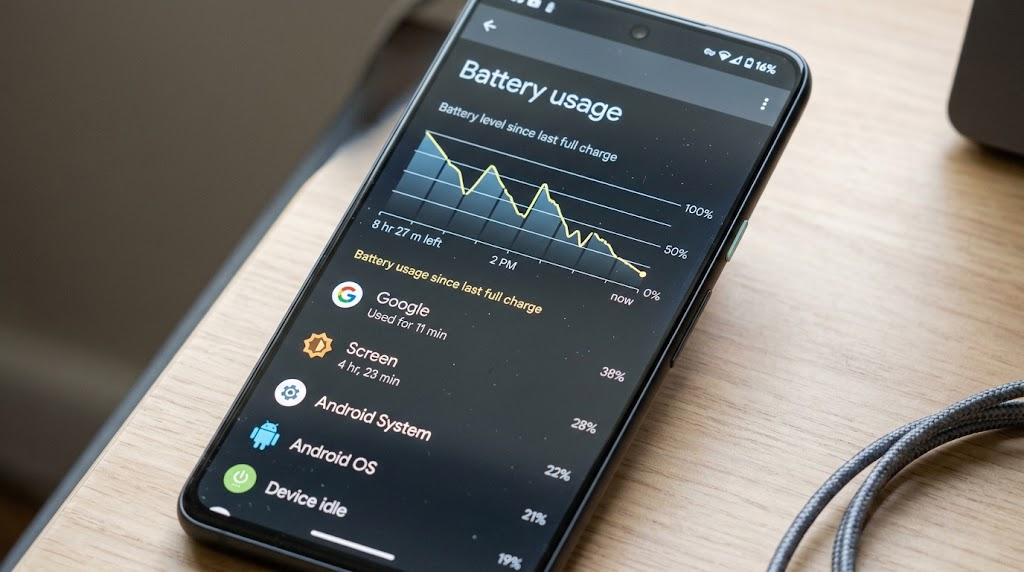
Android provides battery-management tools that can help identify applications consuming significant amounts of power.
The exact interface depends on your Android version and phone manufacturer.
Google Pixel, Samsung Galaxy, and other Android devices may use different menu names.
If you cannot find a setting, use the search function inside Settings and enter terms such as Battery, Battery usage, or Battery health.
Find the Battery-Usage Screen
On many Android phones, follow these steps:
- Open the Settings application.
- Select Battery.
- Look for Battery usage or a similarly named option.
- Review the battery graph and application-usage information.
- Select an application, where supported, to view additional details.
On some Google Pixel devices, battery-usage information is available through Settings > Battery > Battery usage.
Samsung Galaxy devices commonly place battery information under Settings > Battery, although some software versions organize these controls under Device care or Battery and device care.
Consult your device’s support documentation if the menu differs.
Google’s official Android battery troubleshooting guidance provides additional information about managing battery problems.
Identify Applications Using Significant Battery Power
Once you open the battery-usage screen, look for applications accounting for a substantial share of recent consumption.
A high percentage is not automatically suspicious.
For example, if you spent several hours watching videos, the streaming application may appear near the top.
That would be consistent with normal use.
Instead, look for mismatches between your activity and the reported consumption.
An application you rarely open may deserve investigation if it repeatedly appears among the largest battery consumers.
Also check whether battery consumption rises during periods when the phone is supposed to be idle.
Remember that battery-usage percentages describe a share of recorded consumption. They do not necessarily represent the percentage of total battery capacity an application has consumed.
Compare Foreground and Background Activity
Some Android devices distinguish between foreground and background battery activity.
Foreground activity generally refers to an application being actively used or visible.
Background activity refers to work performed while the application is not the main focus.
This distinction can be useful.
A messaging application may legitimately use some background power to receive messages.
A photo-backup application may consume more while uploading media.
However, sustained background activity from an application that does not appear to need it may warrant investigation.
Depending on your device, application battery settings may offer options such as optimized, restricted, or unrestricted battery use.
Restricting an application may reduce power consumption, but it can also delay notifications or prevent expected background functions.
Apply restrictions selectively.
Check Recently Installed or Updated Applications
Think about when the battery problem began.
Did you install a new application shortly beforehand?
Did an existing application receive an update?
Did you grant an application new permissions?
If the timing matches, inspect that application more closely.
Check its battery usage, update history, and whether its behavior matches its intended purpose.
You can temporarily uninstall a nonessential application and monitor whether the problem improves.
Avoid removing unfamiliar system applications merely because their names are technical.
Review Android Battery-Saving Features
Many Android phones include battery-saving features.
Depending on the device, these may be called Battery Saver, Power saving, Adaptive Battery, or similar names.
These features can reduce background activity, adjust performance, or change other settings to extend battery life.
They can be useful during periods of heavy consumption.
However, battery-saving modes are not a substitute for investigating persistent overheating or hardware problems.
For manufacturer-specific guidance, consult your phone’s official support website.
Samsung users can begin with Samsung Support.
How to Check Battery Usage on iPhone
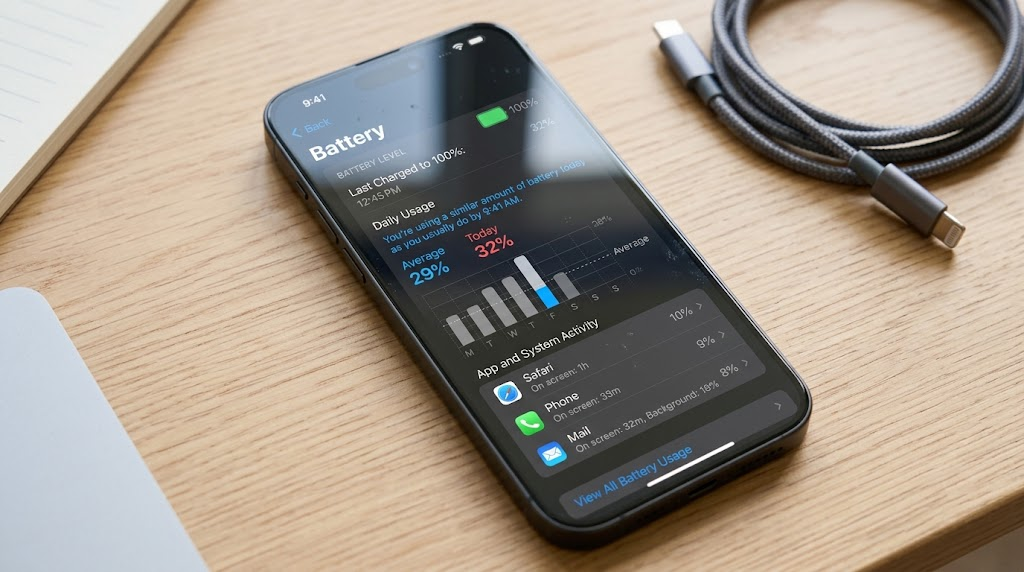
Apple provides battery-usage information directly in iPhone settings.
This information can help identify applications and activities associated with rapid battery drain.
The available details and presentation depend on the installed iOS version.
Open iPhone Battery Settings
To review battery consumption:
- Open Settings.
- Tap Battery.
- Review the battery-level graph and available usage information.
- Examine the applications and activities listed below the graph.
- Use the available graph controls or time-period options to inspect recent consumption.
Depending on your iOS version, you may see daily usage information, historical comparisons, or application activity details.
Some versions allow you to distinguish application usage while the screen was active from background activity.
The labels and available time ranges can differ between releases.
Apple explains battery monitoring and management in its iPhone User Guide.
Look for Unexpected Application Activity
Start with the applications using the most battery power.
Compare their consumption with your actual activity.
If you spent an hour using video navigation or recording video, substantial battery use may be expected.
If an application consumed significant power while you barely interacted with it, investigate its background behavior.
An application may have been uploading files, synchronizing content, playing audio, or performing other permitted tasks.
You can also check whether the application recently received an update.
Do not assume that every application showing background activity is malfunctioning.
Review Background App Refresh
iPhone includes a feature called Background App Refresh.
Where supported, it allows certain applications to update content when they are not actively open.
To review the setting, open:
Settings > General > Background App Refresh
You can adjust background refresh behavior for supported applications.
Disabling unnecessary background refresh may help reduce some battery consumption.
However, the effect depends on the applications involved, and not all background activity is controlled by this setting.
Certain system functions and other forms of permitted background activity operate differently.
Only disable features you do not need.
Check iPhone Battery Health
Battery-health information can help determine whether reduced battery capacity is contributing to shorter battery life.
On supported iPhones, battery information is available through Settings > Battery.
Depending on the model and iOS version, look for Battery Health, Battery Health & Charging, or the relevant battery-health section.
The available information may include maximum capacity, performance capability, cycle-count details on supported models, or service recommendations.
Maximum capacity describes the battery’s estimated capacity relative to when it was new.
As this value decreases, the phone generally stores less energy per full charge.
If iOS reports that battery service is recommended, consider contacting Apple or an authorized service provider.
A reduced maximum-capacity reading does not by itself prove that overheating is caused by the battery.
For further explanation, see Apple’s iPhone Battery and Performance guidance.
Practical Fixes for Fast Battery Drain
Once you have reviewed battery usage, work through the following fixes.
The most effective approach is to make one or two targeted changes and observe whether they improve battery life.
Changing every setting simultaneously makes it harder to identify the actual cause.
Start by Reviewing Battery Usage
Before installing applications or changing system settings, inspect the battery-usage screen.
Look for unusual consumption, recent application activity, and patterns that match the times your phone becomes hot.
If one application stands out, investigate it first.
If no single application appears responsible, consider display usage, connectivity, charging conditions, and battery health.
This initial check prevents unnecessary troubleshooting.
Restart Your Phone
A restart can resolve some temporary software problems.
For example, an application or system process may be stuck repeatedly attempting a task.
Restarting stops running processes and allows the operating system to start fresh.
Use your phone’s normal restart procedure.
After restarting, allow the device to return to normal operation and monitor battery consumption.
If the problem disappears but returns whenever a particular application runs, that pattern may help identify the cause.
A restart will not repair a degraded battery or resolve physical damage.
Update the Operating System and Applications
Software updates can include bug fixes, performance improvements, and security patches.
If an application is consuming excessive power because of a known software issue, an update may resolve it.
On Android, open Settings and look for the system or software update section.
The exact menu varies by manufacturer.
Application updates are generally available through Google Play for apps installed from that store.
On iPhone, check Settings > General > Software Update for available iOS updates.
You can update App Store applications through the App Store’s account interface.
Install updates from legitimate sources.
Avoid downloading supposed battery-repair packages from unfamiliar websites.
If your device becomes dangerously hot or shows signs of battery damage, do not continue using it merely to complete an update.
Reduce Unnecessary Screen Power Consumption
Display settings are among the simplest adjustments to test.
Lower excessive brightness, use automatic brightness where appropriate, and reduce the time before the screen locks.
If your device offers an always-on display, consider temporarily disabling it to determine whether it meaningfully affects your battery life.
Some phones also allow adjustments to display refresh rate.
Higher refresh rates can increase power consumption under certain conditions, although the effect depends on the screen technology and software.
After making a change, compare battery performance during similar usage.
Restrict Problematic Background Activity
If an application repeatedly consumes significant battery power in the background, investigate whether it needs that activity.
For example, you may not need a shopping application to refresh frequently.
However, restricting a messaging, navigation, accessibility, or safety-related application could interfere with important functions.
On Android, review the application’s battery-management options.
On iPhone, inspect relevant settings such as Background App Refresh and the application’s permissions.
Use restrictions selectively rather than disabling every background process.
Test Recently Installed Applications
A recently installed or updated application may be associated with sudden battery drain.
If you suspect a nonessential application, try the following:
- Record its recent battery consumption.
- Check whether an update is available.
- Restart the phone and observe whether the behavior continues.
- Temporarily remove the application if you can do so safely.
- Monitor battery consumption under similar conditions.
If battery life improves after removing the application, that is useful evidence.
However, a single improvement does not always establish causation.
Battery consumption also depends on signal strength, screen use, charging habits, and other changing conditions.
If you reinstall the application and the problem consistently returns, the connection becomes more convincing.
Improve Network Conditions
If battery drain occurs mainly in areas with weak cellular coverage, connectivity may be a contributing factor.
Use a reliable Wi-Fi connection when appropriate.
Avoid leaving your phone in locations with consistently poor reception when you do not need cellular access.
If you are traveling or in a remote area, a temporary increase in battery consumption may be expected.
You can also test whether battery drain changes when cellular activity is disabled, provided doing so will not interfere with important communications.
For an overnight comparison, keep other conditions as similar as practical.
Use Battery Saver or Low Power Mode
Most modern smartphones provide power-saving features.
On Android, look for Battery Saver or the manufacturer’s equivalent.
On iPhone, Low Power Mode is available through battery settings and other supported controls.
These modes can reduce certain background activities and power-intensive functions.
They are useful when you need to extend remaining battery life.
However, if a phone repeatedly overheats while idle, enabling a power-saving mode should not be the only response.
Investigate the underlying cause.
Check Battery Health and Charging Behavior
If your phone is several years old and battery life has gradually declined, battery aging becomes a stronger possibility.
Review any available battery-health information.
Check whether the device charges reliably and whether the manufacturer reports that service is recommended.
If battery life remains poor after addressing software and usage factors, contact the manufacturer or a qualified repair professional.
Battery replacement may restore useful battery life when reduced capacity is the primary problem.
It will not necessarily resolve software bugs or connectivity-related drain.
Compare Results Under Similar Conditions
Troubleshooting is more reliable when you compare similar situations.
For example, note battery consumption during two nights when the phone is in the same location, connected to the same network, and not performing an obvious backup.
You can also compare consumption during similar periods of light use.
Record whether the phone was charging, whether the screen was active, and whether a major application update occurred.
Do not expect identical results every time.
Small differences are normal.
Look for meaningful, repeatable improvements rather than treating a single battery percentage as a definitive test.
Why Does My Phone Overheat While Charging?
It is normal for a smartphone to generate some heat while charging.
Charging transfers energy into the battery, and some energy is lost as heat.
The amount of warmth depends on charging technology, device design, ambient temperature, and whether the phone is being used.
Fast charging and wireless charging may generate noticeable warmth under certain conditions.
However, routine warmth should not be confused with persistent or excessive overheating.
Common Causes of Heat During Charging
A phone may become warmer when you charge it while gaming, streaming video, recording video, or using navigation.
These activities generate heat at the same time the battery is charging.
Charging in direct sunlight or a hot vehicle can make the situation worse.
Thick insulating materials or poorly ventilated locations can also interfere with heat dissipation.
A damaged or incompatible charging accessory may contribute to abnormal charging behavior.
Some smartphones automatically slow or pause charging when they detect temperatures outside their preferred operating range.
This is a protective function, not necessarily evidence of a defective charger.
How to Charge Your Phone More Safely
Follow the charging recommendations provided by your phone manufacturer.
Use compatible charging accessories from reputable suppliers.
Charge the device in a dry, well-ventilated location within the manufacturer’s recommended temperature range.
Avoid placing the phone under pillows, blankets, or other materials that trap heat.
If your phone becomes unusually warm during demanding activities, stop those activities and allow the device to cool.
You can also remove a case if the manufacturer recommends doing so for excessive charging heat.
Never attempt to cool a hot phone by exposing it to extreme cold or water.
When Charging Heat Becomes a Safety Concern
Stop charging if you notice swelling, smoke, unusual odors, visible battery-related damage, or other signs of a potentially unsafe battery.
If the phone is extremely hot, avoid handling it unnecessarily.
Disconnect power only if doing so is safe.
Keep the device away from combustible materials when possible without putting yourself at risk, and follow the manufacturer’s safety instructions.
If a battery appears swollen or damaged, do not puncture, compress, open, or attempt to replace it yourself unless you are appropriately qualified and following manufacturer-approved repair procedures.
Arrange professional support.
Could Spyware Cause Battery Drain or Overheating?
Yes, spyware and other malicious software can sometimes contribute to battery drain or overheating. However, neither symptom proves that spyware is installed.
Malicious software may consume processor resources, access device sensors, communicate over the network, or perform other activities that require energy.
For example, software that repeatedly transmits data could increase network activity and power consumption.
But ordinary applications perform many of these same technical operations for legitimate reasons.
Cloud backups, navigation, video calls, and software updates can all consume power without indicating a security compromise.
Battery behavior alone cannot reliably distinguish malicious software from legitimate activity.
Signs That Make a Security Investigation More Relevant
Security concerns become more meaningful when battery problems appear alongside additional evidence.
Examples include an unfamiliar application requesting sensitive permissions, credible security warnings, or unexpected changes to device settings.
On Android, pay attention to unfamiliar applications with access to features such as Accessibility, device administration, location, microphone, or notifications.
These permissions can be legitimate, but they deserve review when the application is unfamiliar or its purpose is unclear.
On iPhone, review unfamiliar applications and unexpected permissions.
Also investigate unrecognized configuration profiles or device-management settings where applicable.
The presence of a management profile is not automatically malicious. Schools and employers may legitimately manage devices.
However, an unexpected profile on a personally owned phone may warrant further investigation.
If you suspect someone with physical access to your device has installed monitoring software, consider the broader safety implications before changing settings or removing applications.
In some personal-safety situations, changes may alert the person responsible.
How to Review Suspicious Apps on Android
Start by opening Settings and reviewing installed applications.
Look for applications you do not recognize.
Before removing one, check whether it is a legitimate system component, manufacturer service, or application you previously installed.
Review its permissions and battery usage.
Android also includes Google Play Protect, which can scan applications for potentially harmful behavior.
To review Play Protect on a typical device:
- Open the Google Play Store.
- Tap your profile icon.
- Select Play Protect.
- Review the available scan and security information.
- Run a scan if the option is available.
The interface may vary with Google Play updates.
Google explains this feature in its official Google Play Protect documentation.
Play Protect helps identify potentially harmful applications, but no single security scan can guarantee that a device is free from every possible threat.
How to Review Security Concerns on iPhone
On iPhone, begin by reviewing installed applications and their permissions.
Open Settings and inspect Privacy & Security for relevant controls.
Review access to sensitive information such as location, microphone, camera, and photographs.
You can also check for unexpected device-management profiles.
Depending on your iOS version, profile-management information may appear under Settings > General > VPN & Device Management.
If you do not see this option or any profiles, the available configuration may differ.
Do not remove a legitimate employer or school management profile without understanding its purpose.
Keep iOS updated and install applications through trusted distribution channels.
Be cautious of websites claiming they can completely scan your iPhone for spyware simply because you opened a page.
A normal website does not have unrestricted access to the operating system or installed applications.
What If Battery Drain Continues After a Security Check?
If you find no meaningful security indicators, return to ordinary battery troubleshooting.
Review application activity, signal strength, battery health, and charging conditions.
A clean security scan is useful information, but it is not proof that every possible threat has been excluded.
Likewise, continued battery drain does not prove that spyware is present.
If you have additional evidence of compromise, such as unexpected account access or unfamiliar security changes, investigate those issues separately.
For a broader explanation of warning signs, permissions, and safe investigation methods, read our comprehensive guide to detecting spyware on a phone.
Editorial note: Replace the internal-link placeholder with the site’s confirmed comprehensive spyware-guide URL before publication.
When Battery Problems May Indicate a Hardware Issue
Not every battery problem can be resolved through settings.
Sometimes the battery, charging system, or another hardware component requires professional attention.
Battery Swelling or Physical Deformation
A swollen battery is a serious warning sign.
Possible visible indicators include a lifting screen, separation between the display and frame, or an unusual bulge.
These symptoms can have other explanations, but suspected battery swelling should be treated as a safety concern.
Stop using and charging the device.
Do not press the screen back into place or attempt to puncture or flatten the battery.
Contact the manufacturer or a qualified repair professional for safe handling instructions.
Persistent Abnormal Heat
A phone that repeatedly becomes very hot during light use or while idle may have a hardware or software problem.
If ordinary troubleshooting does not resolve the issue, professional assessment may be appropriate.
Seek help sooner if the phone becomes uncomfortable to touch, displays temperature warnings, or behaves unpredictably.
A technician may be able to examine charging behavior, battery condition, and other components.
Repeated Temperature-Related Shutdowns
Some smartphones automatically reduce performance, limit charging, or shut down when temperatures exceed their operating limits.
These protective responses may occur in extremely hot or cold environments.
However, repeated temperature-related shutdowns under ordinary indoor conditions deserve investigation.
Check the manufacturer’s operating-temperature guidance.
If the problem continues after the device returns to an appropriate environment, contact support.
Charging Failures and Unexpected Shutdowns
A phone that frequently stops charging, shuts down with charge remaining, or behaves unpredictably may have a degraded battery or another hardware issue.
Software problems can sometimes produce similar symptoms.
That is why battery-health information and professional diagnostics can be helpful.
Do not assume that replacing the battery will solve every charging problem.
A damaged charging connector, power-management component, or other fault may require different repairs.
A Step-by-Step Checklist to Diagnose Battery Drain
If your phone battery is draining unusually quickly, use this checklist to narrow down the cause.
- Check battery usage. Open your phone’s battery settings and identify applications or activities using significant power.
- Record when the problem happens. Note whether battery drain occurs during use, overnight, while charging, or in specific locations.
- Check the temperature pattern. Determine whether the phone becomes warm during demanding tasks or remains unusually hot while idle.
- Review recent changes. Consider newly installed applications, software updates, restored backups, and changed permissions.
- Restart the phone. Check whether a temporary software problem improves.
- Install legitimate updates. Update the operating system and applications when safe and appropriate.
- Reduce unnecessary power use. Adjust excessive brightness, unused hotspots, and avoidable background activity.
- Check connectivity. Determine whether weak cellular reception coincides with increased drain.
- Review battery health. Look for manufacturer-provided information about capacity, performance, or service recommendations.
- Investigate security only when supported by evidence. Review unfamiliar applications, sensitive permissions, and credible security alerts.
- Seek professional help when necessary. Persistent abnormal heat, swelling, physical damage, and repeated charging failures should not be ignored.
The key is to identify patterns.
An application repeatedly consuming unusual amounts of power is more useful evidence than a vague impression that the battery is worse than before.
Likewise, heat that appears only during charging suggests a different investigation from heat that occurs while the phone is disconnected and idle.
Frequently Asked Questions
Why Is My Phone Battery Draining So Fast All of a Sudden?
Sudden battery drain may be caused by an application update, intensive background activity, weak cellular reception, a software issue, or a change in how you use the phone.
A recently installed application or operating-system update may also coincide with the problem.
Start by checking battery usage and comparing it with your recent activity.
If one application is consuming unexpectedly large amounts of power, update it or investigate whether it is performing unnecessary background tasks.
If no application stands out, check network conditions, display usage, and battery health.
Why Does My Phone Get Hot When I Am Not Using It?
Your phone may be processing information in the background even when the screen is off.
Possible activities include cloud backups, application updates, synchronization, and network communication.
Poor cellular reception and warm environmental conditions can also contribute.
If the device becomes persistently hot while idle, check battery usage and recent software changes.
If it becomes extremely hot or shows signs of physical damage, stop using it and seek professional assistance.
Can Spyware Make a Phone Battery Drain Faster?
Yes. Spyware can sometimes increase battery consumption by using processing resources, collecting information, or communicating over the network.
However, battery drain alone is not reliable evidence of spyware.
Ordinary applications can produce similar symptoms.
A security investigation becomes more appropriate when battery problems appear alongside unfamiliar applications, unusual sensitive permissions, credible security warnings, or other meaningful indicators.
Use your phone’s built-in security controls and avoid alarming websites that claim to detect spyware without examining the device.
How Can I Find Out Which App Is Draining My Battery?
On Android, open Settings and look for Battery or Battery usage.
The exact path depends on your manufacturer and Android version.
On iPhone, open Settings > Battery.
Review the applications associated with recent consumption and compare the reported activity with how you used the phone.
An application near the top of the list is not necessarily malfunctioning.
Focus on unusually high consumption that does not match expected activity.
Why Does My Phone Overheat While Charging?
Your phone may become warm while charging because energy transfer generates heat.
Fast charging, wireless charging, demanding applications, and high ambient temperatures can increase warmth.
Using navigation or gaming while charging may also place additional demands on the device.
Charge your phone in a suitable environment with compatible accessories.
If it becomes extremely hot, displays repeated temperature warnings, or shows signs of battery damage, stop charging and follow the manufacturer’s safety instructions.
Does Fast Battery Drain Mean My Battery Needs Replacing?
Not necessarily.
Battery aging is one possible cause, but software activity, screen brightness, weak reception, and demanding applications can also shorten battery life.
If your phone is older and battery capacity has declined significantly, replacement may be worth considering.
Check available battery-health information and look for manufacturer service recommendations.
If battery health appears reasonable, investigate other causes before paying for a replacement.
Should I Factory-Reset My Phone Because It Gets Hot?
A factory reset should generally not be your first troubleshooting step.
Resetting removes device data and settings, and it may not resolve battery aging, poor reception, or hardware problems.
Start by reviewing battery usage, restarting the device, updating software, and investigating problematic applications.
A factory reset may be appropriate in some persistent software-related cases, ideally after consulting manufacturer guidance.
Back up important information before resetting.
If you suspect targeted monitoring or another security issue, consider obtaining appropriate guidance before making major changes that could remove evidence or alert someone with access to the device.
When Should I Take an Overheating Phone to a Repair Professional?
Seek professional help if your phone repeatedly becomes abnormally hot during ordinary use, displays persistent temperature warnings, shuts down unexpectedly, or has ongoing charging problems.
Battery swelling, physical deformation, or suspected battery damage requires more urgent attention.
Stop using or charging a potentially unsafe device and follow the manufacturer’s instructions.
Use the manufacturer’s service network or a qualified repair professional with appropriate battery-handling procedures.
Final Thoughts
A phone battery draining fast or a device becoming unusually hot can be frustrating, but there are several ordinary explanations worth investigating before assuming a security problem.
Start with your phone’s battery-usage information. Look for applications consuming unexpected power, check network conditions, review recent updates, and consider whether battery aging may be involved.
If overheating persists, charging becomes unreliable, or the device shows signs of physical damage, seek professional assistance.
Spyware can sometimes affect battery consumption, but battery drain and warmth alone do not establish that a phone has been compromised.
If you notice additional security warning signs, our comprehensive phone-spyware guide explains how to investigate suspicious applications, permissions, and device behavior more carefully.
The most reliable approach is to follow the evidence, make targeted changes, and prioritize device safety when overheating becomes abnormal.
Pingback: Why Does My Phone Screen Turn On by Itself or Keep Restarting? – Perlon Tech
Pingback: Why Is My Phone Using So Much Mobile Data? How to Find the Cause and Fix It – Perlon Tech
Pingback: Why Does My Phone’s Camera or Microphone Indicator Turn On Randomly? – Perlon Tech