If your phone screen turns on by itself while the device is locked, it may be responding to a notification, a screen-wake setting, or another normal device feature.
However, if your phone completely shuts down and starts again without warning, that is a different problem. Random restarts can involve software errors, problematic applications, storage limitations, battery or power issues, overheating, or hardware faults.
READ ALSO: Why Is My Phone Battery Draining Fast or Overheating? Causes and Fixes
The distinction matters because the troubleshooting steps are different.
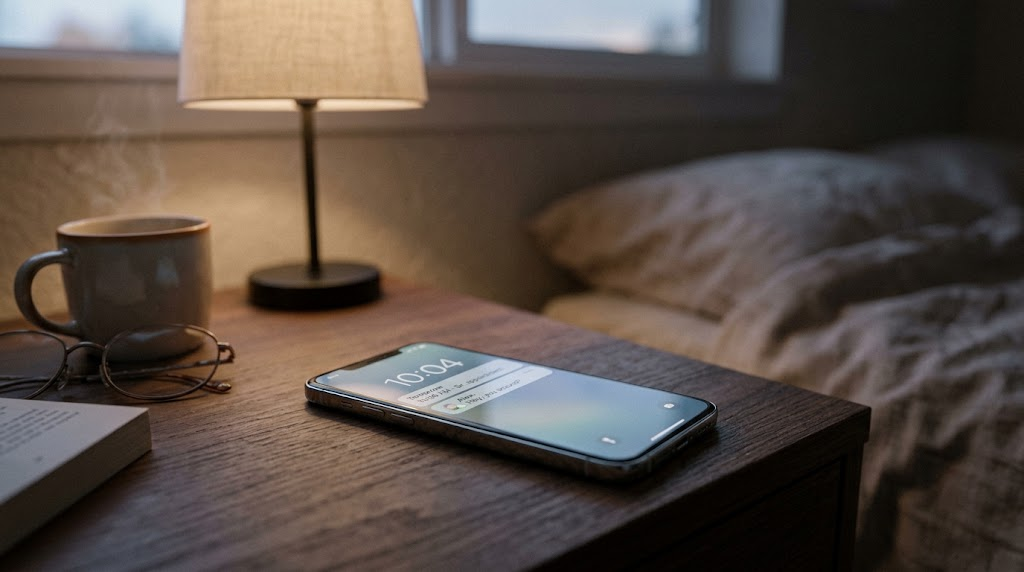
Neither an unexpectedly illuminated screen nor a random restart automatically means your phone has spyware.
This guide explains how to identify the problem, investigate common causes, and troubleshoot Android phones and iPhones safely.
Quick Answer: Why Does My Phone Screen Turn On or Restart by Itself?
Your phone may light up or restart unexpectedly for several reasons. The first step is determining exactly what happens.
If your phone screen lights up but the device remains locked, possible explanations include incoming notifications, Raise to Wake, Lift to Wake, tap-to-wake gestures, Always-On Display settings, or accidental button activation.
These behaviors are often related to settings rather than a technical fault.
If your phone keeps restarting randomly, the possible causes are different. Software instability, an incompatible application, limited storage, power interruptions, battery problems, or hardware damage may be involved.
Start with the simplest checks.
See Also: How to Check and Remove Unknown Devices From Your Google, Apple, and Microsoft Accounts
For unexpected screen wake-ups, review notifications, display settings, wake gestures, and anything that might press the power button.
For random restarts, check for system updates, review storage availability, update applications, and look for a pattern.
For example, does the phone restart while charging, during gaming, or shortly after opening a particular application?
These observations can help narrow down the problem.
A phone can also experience both symptoms independently. Finding a cause for one does not necessarily explain the other.
Is Your Screen Waking Up or Is the Entire Phone Restarting?
Before changing settings, observe what your phone actually does.
An unexpected screen wake-up and a complete device restart may look similar at first, especially when they happen at night.
However, there are important differences.
Signs Your Phone Screen Is Simply Waking Up
Your phone is probably experiencing an ordinary screen-wake event if:
- The display lights up while the phone remains locked.
- You can see the lock screen, clock, or notifications.
- The display turns off again after a short period.
- The phone continues working normally.
- No manufacturer logo or startup sequence appears.
For example, an iPhone lying on a desk might illuminate its lock screen after receiving a message.
Similarly, an Android phone may wake its display when a notification arrives, depending on its settings.
The screen can also activate when you move the phone or touch its display.
These events do not necessarily indicate a malfunction.
Signs Your Phone Is Actually Restarting
A genuine restart means the phone’s operating system has started again.
You might notice:
- The screen goes black before a startup logo appears.
- The phone displays the Apple, Samsung, Google, or another manufacturer logo.
- The device takes longer than usual to become usable.
- Previously running applications have closed or reloaded.
- The phone requests its passcode, PIN, or password before biometric unlocking becomes available.
The last point can be particularly useful because phones commonly require their primary authentication method after restarting.
However, no single visual clue identifies every restart on every device.
Some phones may also freeze, briefly lose display output, or reload part of their interface without completing a full reboot.
If the problem happens repeatedly, note the approximate time and what you were doing.
That information can help identify patterns and may be useful if you contact technical support.
Why Does My Phone Screen Light Up When It Is Locked?
If your phone screen lights up when locked, several ordinary features could explain it.
Modern smartphones are designed to display useful information without requiring users to unlock them.
Depending on your phone’s model and settings, that behavior can sometimes appear unexpected.
Incoming Notifications Can Wake the Display
Notifications are among the first things to investigate.
Messages, incoming calls, reminders, application alerts, and other notifications may cause the screen to illuminate.
On some devices, the display may wake even when the notification’s contents are hidden for privacy.
For example, you might see the lock screen illuminate without immediately noticing which application triggered it.
Notification behavior varies between Android manufacturers and iPhone models.
Some phones let you decide whether particular applications can show notifications on the lock screen.
Others provide additional options for waking the display when notifications arrive.
If the screen frequently lights up at night, check whether the timing corresponds with incoming alerts.
Lift to Wake and Raise to Wake Features
Some smartphones can detect when you pick them up.
On supported iPhones, Apple calls this feature Raise to Wake.
When enabled, lifting the device can activate its display.
Android manufacturers offer similar features, sometimes called Lift to Wake or Lift to Check Phone.
The exact terminology depends on the manufacturer.
A phone resting on an unstable surface may occasionally experience movement that resembles a pickup gesture.
However, movement alone does not prove that a wake gesture caused the screen to activate.
To investigate, temporarily disable the relevant feature and observe whether the behavior continues.
Tap-to-Wake Features
Many smartphones allow you to wake the display by tapping it.
Some Android devices support double-tap gestures, while compatible iPhones support Tap to Wake.
These features are convenient, but accidental contact may activate the screen.
For example, a phone carried in a pocket or placed against another object may receive unintended touches.
If your device supports tap-to-wake controls, temporarily switching them off can help determine whether accidental contact is involved.
Always-On Display Behavior
An Always-On Display can show information while the phone is otherwise locked.
Depending on the device, this may include the time, widgets, notifications, or other information.
Some phones also adjust their display behavior based on charging, movement, lighting conditions, or power-saving settings.
An Always-On Display may therefore appear brighter or more active at certain moments.
However, this is not the same as the entire phone restarting.
Not every phone supports an Always-On Display, and implementation varies significantly.
Power Button or Case Interference
Physical contact can also wake a phone.
A protective case may press against a side button, especially if it is damaged or incorrectly fitted.
A tight phone holder or accessory may produce similar interference.
If the power button feels unusually stiff, remains partially depressed, or activates with very little pressure, that may be relevant.
Try removing the case temporarily and placing the phone on a stable surface.
If the unexpected wake-ups stop, inspect the case and button alignment.
Do not attempt to force, dismantle, or repair a damaged button yourself.
Manufacturer-Specific Display Features
Android manufacturers sometimes include additional gestures and display options.
Samsung Galaxy phones, for example, offer motion and gesture settings on supported models.
Other manufacturers may provide ambient display features, notification lighting, or screen-wake gestures.
These features should be investigated individually.
A setting available on one Samsung Galaxy model may not exist on another Android phone.
The safest approach is to check your exact model’s settings and official support documentation.
How to Stop an Android Phone Screen From Waking Unexpectedly
If your Android phone wakes up by itself, begin with notification and display settings.
Android interfaces vary between Google Pixel, Samsung Galaxy, Motorola, Xiaomi, OnePlus, and other manufacturers.
For that reason, the following steps use general Android settings where possible and identify manufacturer-specific options separately.
Check Which Notifications Are Appearing
Start by reviewing recent notifications.
On many Android phones, you can swipe down from the top of the display to open the notification panel.
Look for applications that frequently generate alerts.
If the screen lights up at particular times, compare those times with recent notification activity.
Some Android devices also provide notification history.
Where available, you can look for Notification history in Settings.
If the feature was previously disabled, it may not show older notifications.
Next, open Settings and find the Notifications section.
Review which applications can send alerts and whether those alerts appear on the lock screen.
Rather than disabling every notification, start with applications that appear relevant.
For example, if a shopping application sends frequent promotional alerts overnight, changing its notification settings may solve the problem without affecting important calls or messages.
Google provides general guidance through its Android Help documentation.
Review Lock-Screen Notification Settings
Android devices offer different controls for lock-screen notifications.
Depending on the phone, you may be able to hide notification contents, prevent particular applications from appearing on the lock screen, or change notification presentation.
However, hiding notification contents does not necessarily stop the screen from waking.
Look specifically for settings that control screen activation or display behavior when notifications arrive.
If you cannot find the appropriate option, use the search field in Settings.
Useful search terms include:
- Wake screen
- Lock screen
- Notifications
- Lift to wake
- Tap to wake
- Always-on display
Only change settings that actually appear on your device.
Check Wake Gestures
Some Android phones support lifting or tapping gestures that activate the display.
Search Settings for the relevant feature.
If enabled, turn off one wake gesture temporarily.
Then lock the phone and leave it on a stable surface.
Observe whether the unexpected wake-ups continue.
Testing one setting at a time is important because it helps identify the actual cause.
If you disable several features simultaneously, you may stop the behavior without knowing which setting was responsible.
Check Samsung Galaxy Motion and Gesture Settings
On supported Samsung Galaxy phones, wake-related options may appear under:
Settings > Advanced features > Motions and gestures
Depending on the model and software version, options may include Lift to wake and Double tap to turn on screen.
Samsung also provides lock-screen and Always On Display controls, although their locations and available features vary.
For example, some Galaxy devices place Always On Display settings within the Lock screen or Lock screen and AOD section.
If your device uses different terminology, search Settings rather than assuming the same path applies.
You can consult Samsung’s official support website for model-specific instructions.
Test Without the Case
Remove the protective case if it can be removed safely.
Place the phone on a stable desk and lock it.
Watch for unexpected activation.
If the behavior stops, examine whether the case presses against the power button or another physical control.
If the screen continues waking, reinstall the case if it is not causing interference and continue troubleshooting.
Check for Software Updates
If notification and wake settings do not explain the behavior, check for available system updates.
On many Android devices, software update controls are available through Settings, although the menu path varies.
Use the Settings search function to locate Software update or System update.
Follow the manufacturer’s instructions and keep the phone adequately charged during installation.
Updates may resolve software defects, but they are not guaranteed to correct every unexpected screen-wake event.
How to Stop an iPhone Screen From Turning On Unexpectedly
If your iPhone screen turns on by itself, start with notification behavior and supported display features.
Apple provides several ways to wake an iPhone without pressing its side button.
The features available depend on the model and iOS version.
Review Lock-Screen Notifications
Open:
Settings > Notifications
Review notification settings for applications that frequently send alerts.
For an individual application, you can inspect its notification permissions and available alert locations.
On supported iOS versions, notification settings include options such as Lock Screen, Notification Center, and Banners.
If a particular app appears to trigger unwanted screen activity, consider changing its Lock Screen notification behavior.
You do not necessarily need to disable all notifications from that app.
For example, you might prefer to keep its alerts in Notification Center without displaying them on the lock screen.
Apple explains notification management in its iPhone User Guide.
Check Raise to Wake
On supported iPhones, Raise to Wake activates the display when you lift the device.
Apple documents this setting under:
Settings > Display & Brightness > Raise to Wake
If the feature is available and enabled, turn it off temporarily.
Lock the iPhone and observe whether the unexpected wake-ups continue.
If nothing changes, Raise to Wake may not be responsible.
You can turn the feature back on if you find it useful.
Review Tap to Wake
Compatible iPhones can wake when you tap the display.
On supported models and iOS versions, the relevant option appears within:
Settings > Accessibility > Touch
Look for Tap to Wake or the equivalent option available on your device.
If your model supports the setting, temporarily disable it and test again.
Not every iPhone offers the same wake gestures or controls.
Examine Always-On Display Settings
Supported iPhone models include an Always-On Display.
This allows certain lock-screen information to remain visible while the device is locked.
On compatible models, the controls are found under:
Settings > Display & Brightness > Always On Display
Available options may include controlling whether the wallpaper or notifications are shown.
If you are unsure whether the illuminated screen is related to Always-On Display behavior, temporarily turn the feature off.
Then observe the phone under similar conditions.
If the behavior stops, you can decide whether to leave the setting disabled or adjust the available display options.
If your iPhone does not support Always-On Display, this explanation does not apply.
Check StandBy Behavior
Supported iPhones running compatible iOS versions can display information through StandBy when positioned appropriately while charging.
StandBy may show clocks, widgets, or other information.
If your iPhone screen becomes active mainly while charging on a bedside stand, check whether StandBy is enabled.
Look under:
Settings > StandBy
The available display and activation options depend on the device.
This is particularly relevant when the phone appears to wake at night.
A StandBy display is a normal feature, not evidence of a restart or unauthorized access.
Rule Out Accidental Button Presses
Remove the case temporarily if it may be pressing the side button.
Also check whether the phone is resting against an object that could activate a button.
Avoid using excessive pressure to test the button.
If the button appears damaged or does not operate normally, contact Apple or an authorized repair provider.
Why Does My Phone Restart Randomly?
A phone that restarts without warning requires a different investigation from one that simply illuminates its lock screen.
Random restarts can occur because the operating system encounters a problem, an application behaves incorrectly, or the device experiences a power or hardware fault.
The timing of the restart can provide useful clues, although it rarely proves the cause by itself.
Operating-System Problems
Smartphone operating systems are complex.
Occasionally, software faults may cause the device to freeze, crash, or restart.
Problems can sometimes appear after an operating-system update or configuration change.
However, a restart occurring shortly after an update does not automatically mean the update caused it.
If a software update is available, installing it may address known defects.
Google’s official guide to fixing an Android device that restarts or crashes recommends checking for updates as part of troubleshooting.
Problematic Applications
An application that behaves incorrectly can cause crashes, freezes, excessive resource use, or other stability problems.
In some circumstances, application-related problems may contribute to broader device instability.
However, an individual app crashing is not the same thing as the entire phone rebooting.
If your phone began restarting shortly after you installed an application, that timing is worth investigating.
The same applies if the problem consistently occurs while using a particular app.
Updating or temporarily removing the suspected application may help identify whether it contributes to the issue.
Insufficient Available Storage
Phones need free storage for normal operations, updates, temporary files, and application data.
When storage becomes extremely limited, performance and stability problems can occur.
Google’s Android troubleshooting guidance specifically recommends checking storage availability when dealing with restarting or crashing.
Google notes that Android phones can begin experiencing problems when less than 10% of storage is free.
That figure is a troubleshooting guideline, not proof that low storage caused a particular reboot.
On iPhone, limited storage can also interfere with normal operation and software updates, although it should not automatically be blamed for unexplained restarts.
Battery or Power Problems
A phone may restart if it cannot maintain stable power.
Potential explanations include battery deterioration, damaged power components, or other electrical faults.
A battery-related issue may become more noticeable when the phone is under heavier demand.
For example, a device might shut down during resource-intensive activity.
However, that pattern alone cannot establish that the battery is defective.
Battery condition, device age, temperature, and hardware diagnostics may all need consideration.
Excessive Heat
Smartphones generate heat during demanding activities such as gaming, video recording, navigation, and charging.
High ambient temperatures can increase the problem.
Manufacturers incorporate protective mechanisms to manage temperature.
Depending on the device and circumstances, thermal protection may reduce performance, restrict certain functions, or shut the device down.
If your phone restarts when it becomes unusually hot, temperature may be relevant.
However, ordinary warmth during charging does not necessarily indicate a fault.
If the device becomes dangerously hot, stop using it and seek appropriate support.
Physical Damage or Button Problems
Drops, liquid exposure, and damaged internal components can contribute to unstable operation.
A stuck or unintentionally pressed power button may also cause unusual power behavior on some devices.
If random restarts began after physical damage, software troubleshooting may not resolve the underlying issue.
Professional inspection may be necessary.
How to Troubleshoot an Android Phone That Keeps Restarting
If your Android phone restarts by itself, follow a structured troubleshooting process.
Google provides official guidance for Android devices that restart or crash.
The following steps are based on the types of checks described in Google’s troubleshooting documentation, with manufacturer-specific procedures left to the relevant device instructions.
Check for Android System Updates
First, check whether an operating-system update is available.
On many Android phones, you can open Settings and search for:
System update or Software update
The exact location varies by manufacturer.
Install an available update using the instructions provided on the phone.
Keep the device adequately charged and use a reliable internet connection.
After updating, observe whether the restart problem continues.
If the device remains stable, the update may have resolved a software issue.
If it restarts again, continue to the next check.
Review Available Storage
Open Settings and locate Storage.
Check how much space remains available.
If storage is nearly full, remove files or applications you no longer need.
You might start with downloaded videos, duplicate files, or unused applications.
Before deleting photos, documents, or other personal files, confirm that you have a working backup.
Avoid deleting unfamiliar system files or folders.
After freeing space, use the phone normally and monitor whether the restarts continue.
Google’s Android restart and crash troubleshooting guide discusses storage as a relevant diagnostic check.
Update Your Applications
Outdated applications can contain compatibility problems or software defects.
Open the Google Play Store and check for available application updates.
On many Android devices, app update management is available through your profile menu under Manage apps & device.
Update applications using the Play Store’s available controls.
Applications installed from other legitimate sources may have separate update procedures.
After updating, observe whether the phone becomes more stable.
If the issue started immediately after a particular app update, note that information.
An update can sometimes introduce a defect, although timing alone does not confirm causation.
Review Recently Installed Applications
Think about when the restarts began.
Did you recently install a new application?
Did you notice the issue after updating a game, utility, launcher, or another app?
If there is a reasonable connection, consider temporarily uninstalling that application.
Before doing so, check whether the app stores important information locally.
Some applications may delete locally stored data when uninstalled.
After removing the suspected app, monitor the phone.
If the restarts stop, the application may have contributed to the problem.
If they continue, investigate other possible causes.
Test the Phone in Safe Mode
Safe Mode is a diagnostic feature available on many Android devices.
It starts the phone with downloaded applications temporarily disabled.
This can help determine whether an installed application is contributing to the instability.
Safe Mode procedures vary by manufacturer and model.
Do not assume that a button combination described for one Android phone works on another.
Instead, find the official Safe Mode instructions for your specific device.
Google provides general Android troubleshooting guidance, while Samsung and other manufacturers publish their own procedures.
Once the phone enters Safe Mode, use it under conditions similar to those that previously triggered restarts.
For example, if the phone usually restarts while idle, leave it idle for a comparable period.
If the restarts stop in Safe Mode, a downloaded application becomes a more plausible explanation.
However, that result does not identify which application is responsible.
You may need to remove recently installed apps individually and test again.
If the phone continues restarting in Safe Mode, a downloaded app is less likely to be the sole cause.
System software, power issues, or hardware faults may require further investigation.
Safe Mode is a diagnostic tool, not a repair guarantee.
Check for Restart Patterns
Try to identify when the problem occurs.
Does the phone restart only while charging?
Does it happen when the battery level is low?
Does it occur during gaming, video calls, or other demanding activities?
Or does the phone restart while sitting unused?
These patterns may help a technician investigate the cause.
Some manufacturers also provide device-care or diagnostic tools.
For example, supported Samsung Galaxy devices may offer diagnostic features through Samsung Members.
Availability and test capabilities vary by model and region.
Use only the diagnostic features documented for your device.
Contact the Manufacturer if Restarts Continue
If the phone continues restarting after appropriate updates, storage checks, and application troubleshooting, contact the manufacturer.
Explain which steps you have already completed.
Also mention any physical damage, charging problems, or unusual heat.
This information may help support staff determine whether further software investigation or hardware service is appropriate.
What to Do When an iPhone Keeps Restarting
If your iPhone keeps restarting, begin with software updates, storage checks, and the circumstances surrounding the restarts.
Apple provides separate support procedures for devices that restart unexpectedly, become unresponsive, or remain stuck during startup.
The correct procedure depends on which symptom you are experiencing.
Check for iOS Updates
If the iPhone remains usable long enough, open:
Settings > General > Software Update
Check whether an iOS update is available.
Follow Apple’s installation instructions.
Back up important information before major software changes whenever possible.
An update may resolve software problems, but it cannot repair a failing physical component.
Apple provides instructions for updating an iPhone or iPad.
Review iPhone Storage
Open:
Settings > General > iPhone Storage
Review the available storage and the applications using the most space.
If storage is critically low, consider removing unnecessary downloads or unused applications.
iOS may also provide recommendations for managing storage.
Be careful when deleting applications that contain locally stored information.
Offloading an app and deleting it are not identical operations.
Offloading generally removes the application while retaining its documents and data, whereas deleting an app can remove its associated local data.
Confirm what will be removed before proceeding.
Investigate Application-Related Problems
If the iPhone restarts when you open a particular application, investigate that application.
Check the App Store for an update.
You can also check whether the issue occurs only with that app or across the entire device.
Apple’s guidance for applications that unexpectedly quit includes checking for updates and, where appropriate, deleting and downloading the application again.
However, reinstalling an app may remove data stored only on the device.
Make sure important information is backed up or synchronized before deleting it.
Also remember that an application closing unexpectedly is different from the iPhone itself restarting.
Review Battery Health Information
On supported iPhones, battery health information is available in Settings.
The exact menu wording and available details depend on the model and iOS version.
Some devices use Battery Health & Charging, while newer models may show Battery Health within the Battery section.
Battery health information may indicate reduced capacity or whether service is recommended.
Apple explains that chemically aged batteries can become less capable of delivering peak power.
Under certain conditions, insufficient power delivery can contribute to unexpected shutdowns.
However, battery health information alone does not diagnose every random restart.
If the iPhone reports a battery service recommendation or repeatedly shuts down unexpectedly, contact Apple for further assessment.
See Apple’s explanation of iPhone battery performance and unexpected shutdowns.
Check for Physical or Charging Problems
If restarts occur primarily while charging, note whether the issue happens with a particular cable, adapter, or charging location.
Use compatible, undamaged charging accessories.
Do not continue using accessories with exposed wiring, damaged connectors, or other visible safety problems.
If the phone has experienced liquid exposure or physical damage, seek professional evaluation.
Do not insert objects into the charging port or attempt internal repairs.
Contact Apple Support
If the iPhone continues restarting despite appropriate software troubleshooting, Apple Support can help determine the next steps.
Repeated unexpected shutdowns, an inability to complete startup, or suspected hardware damage may require service.
You can begin through Apple Support.
What If the Phone Keeps Restarting in a Loop?
A restart loop occurs when a phone repeatedly attempts to start but cannot remain operational.
For example, it may display the manufacturer logo, turn off, and then display the logo again.
This is more serious than an occasional lock-screen wake-up.
A device trapped in a restart loop may be affected by software corruption, an interrupted update, power problems, or hardware failure.
The cause cannot be determined from the startup loop alone.
Protect Your Data Before Attempting Recovery
If the phone remains accessible for short periods, prioritize backing up important information.
Photos, contacts, messages, authentication data, and application files may be difficult to recover if the device becomes completely inaccessible.
If the phone is unusually hot, visibly damaged, or has a swollen battery, do not keep trying to operate it simply to complete a backup.
Safety takes priority.
If the device cannot remain on long enough to back up, explain the situation to the manufacturer or repair provider.
Avoid Repeated Unverified Button Combinations
Some phones support force-restart or recovery procedures.
However, the required buttons and procedures vary between models.
A force restart is also different from a factory reset.
A force restart generally attempts to restart the device without intentionally erasing personal data.
A factory reset removes user data from the device.
Certain recovery or restore procedures may also erase data.
Do not follow random button combinations or recovery instructions intended for a different phone.
Instead, use official instructions for your exact model.
Android Restart Loops
For Android devices, consult the manufacturer’s startup and recovery documentation.
Google’s Android restarting or crashing guide is a useful starting point when the device remains accessible.
If the phone cannot start normally, manufacturer-specific support becomes especially important.
For a Samsung Galaxy phone, for example, use Samsung’s documentation for the relevant model rather than generic Android recovery instructions.
If the device offers a recovery option that would erase data, understand the consequences before proceeding.
iPhone Restart Loops
Apple publishes guidance for iPhones that remain on the Apple logo or cannot complete startup.
Depending on the symptoms and model, official troubleshooting may involve connecting the iPhone to a computer and using supported recovery procedures.
Apple distinguishes between updating and restoring a device.
Where recovery software offers an Update option, it may attempt to reinstall iOS without erasing personal data.
However, data preservation is not guaranteed in every failure scenario.
A Restore operation erases the device.
Before proceeding, review the instructions for your particular situation and confirm whether a backup exists.
Apple’s support resources for iPhone startup problems provide the appropriate starting point.
If the phone cannot complete recovery, professional assistance may be necessary.
Could Spyware Make a Phone Screen Wake Up or Restart?
It is understandable to wonder whether unexpected phone behavior could involve malicious software.
However, a phone screen turning on unexpectedly or a device restarting randomly is not reliable evidence of spyware.
Both symptoms have many ordinary explanations.
Notifications, wake gestures, operating-system defects, problematic applications, and hardware faults are generally more useful starting points for troubleshooting.
Can Spyware Cause Unusual Phone Behavior?
Malicious applications can interfere with normal device operation.
Depending on their capabilities, they may consume resources, access sensitive information, or behave in ways that affect performance.
However, it is not possible to identify spyware from an unexpected screen wake-up or random restart alone.
A malicious app could exist without producing either symptom.
Likewise, a completely legitimate phone could experience both symptoms.
The important distinction is between a possible technical explanation and actual evidence of compromise.
What Security Signs Deserve Closer Attention?
Security concerns become more meaningful when unusual behavior is accompanied by additional evidence.
Examples include:
- An unfamiliar application with sensitive permissions.
- Unexpected device-management settings or configuration profiles.
- Credible security warnings from the operating system or a trusted security provider.
- Unexplained changes to important account security settings.
- Evidence that another person has access to your device or accounts.
Even these findings require context.
For example, a work-managed phone may legitimately contain management software.
An unfamiliar application may also be a normal component installed by the manufacturer or mobile carrier.
Do not delete system software simply because its name is unfamiliar.
Check Android Applications and Permissions
On Android, open Settings and find the application management section.
Review installed applications.
If you notice something unfamiliar, inspect its application information before taking action.
Check its permissions, installation source where available, and whether it appears to be part of the operating system.
Android also provides controls for sensitive permissions such as camera, microphone, and location access.
The exact interface depends on the Android version and manufacturer.
If an application has permissions it does not reasonably need, you can review or restrict those permissions where appropriate.
However, unusual permissions are not conclusive proof of spying.
Use Google Play Protect Where Supported
Google Play Protect is Android’s built-in application security service for supported Google Play devices.
It checks applications for potentially harmful behavior.
On many devices, you can access it through the Google Play Store.
Open the Play Store, select your profile, and look for Play Protect.
Follow the available instructions to review its status or initiate a scan.
Google explains the feature in its official documentation:
Help protect against harmful apps with Google Play Protect
A clean Play Protect result is reassuring, but it does not guarantee that every possible threat has been detected.
Likewise, a warning should be investigated according to the information provided rather than treated as proof of surveillance.
Review iPhone Applications and Management Settings
On iPhone, review installed applications and their access to sensitive information.
You can examine permissions through:
Settings > Privacy & Security
Available categories include permissions for features such as camera, microphone, and location.
You can also review device management information under:
Settings > General > VPN & Device Management
If a management profile is present, determine whether it belongs to your employer, school, or another organization that legitimately manages the device.
Do not remove an organizational profile without understanding the consequences.
An unexpected management configuration may warrant further investigation, but the presence of a profile alone does not establish spyware.
Avoid Unverified Spyware Detection Claims
Be cautious of websites claiming they can remotely scan any phone and definitively identify spyware.
A normal web page generally cannot inspect every installed application, protected operating-system component, or internal security state.
Similarly, no single consumer scanner can guarantee that a phone is free of all possible surveillance software.
If you have specific evidence of unauthorized access, use trusted security resources and consider professional assistance.
For a broader explanation of warning signs, permissions, and practical security checks, see our [comprehensive phone-spyware guide — internal link to be added].
If your concern relates specifically to unauthorized camera or microphone access, our [camera and microphone privacy guide — internal link to be added] covers those indicators in more detail.
These resources address different security questions and should not replace ordinary troubleshooting for screen wake-ups or restarts.
When to Seek Professional Repair or Manufacturer Support
Many unexpected screen-wake problems can be resolved through settings adjustments.
Repeated restarts are more concerning when basic troubleshooting does not help.
Professional assistance becomes particularly important when the symptoms suggest a possible power or hardware problem.
Repeated Restarts Despite Software Troubleshooting
If your phone continues restarting after software updates, storage checks, and appropriate application troubleshooting, contact the manufacturer.
For Android devices, manufacturer-specific diagnostics may be necessary.
For iPhones, Apple Support can help evaluate whether service is appropriate.
Explain how frequently the restarts occur and whether they happen during charging, idle periods, or demanding activities.
Charging and Power Problems
Seek help if the phone repeatedly shuts down when disconnected from its charger or behaves unpredictably when charging.
A damaged charging port, battery problem, or internal power fault may require inspection.
Do not attempt to repair electrical components without appropriate qualifications.
Unusual Heat
Phones can become warm during normal operation.
However, severe or persistent heat should not be ignored.
If the device becomes excessively hot, stop demanding activities and disconnect it from charging when safe.
Allow it to cool in a suitable environment.
Do not place the phone in a refrigerator, freezer, or water.
If overheating continues, contact the manufacturer.
For additional troubleshooting, see our [phone battery-drain and overheating guide — internal link to be added].
Swollen or Damaged Batteries
A swollen battery is a safety concern.
Possible warning signs include a lifting display, separation between the screen and frame, or unusual deformation of the phone.
These signs do not always confirm battery swelling, but they warrant immediate caution.
Stop using or charging a phone with a suspected swollen or damaged battery.
Do not press the screen back into place.
Do not puncture, bend, compress, or attempt to remove the battery.
Contact the manufacturer or a qualified repair provider for safe handling instructions.
Physical Damage or Liquid Exposure
A phone that began restarting after a drop or liquid exposure may have internal damage.
Even when the exterior looks normal, components can be affected.
If physical damage is suspected, professional assessment is more appropriate than repeatedly resetting the device.
A Phone That Cannot Start Normally
If the phone is trapped in a restart loop or cannot remain operational, contact official support before attempting destructive recovery.
Tell the support provider whether important data has been backed up.
This may influence which troubleshooting options are appropriate.
A Practical Checklist for Screen Wake-Ups and Random Reboots
Use the path that matches what your phone is actually doing.
If Your Phone Screen Turns On by Itself
- Check the behavior: Does the lock screen appear without a startup logo? If so, investigate screen-wake features first.
- Review notifications: Look for applications sending alerts around the time the screen activates.
- Inspect display settings: Check supported Raise to Wake, Lift to Wake, Tap to Wake, and Always-On Display options.
- Test one setting at a time: Temporarily disable a suspected feature and observe the result.
- Check physical interference: Remove the case temporarily and inspect button operation.
- Look for updates: Install appropriate system updates if the behavior remains unexplained.
If the screen continues activating and you cannot identify a setting or notification responsible, consult your device manufacturer’s support resources.
If Your Phone Keeps Restarting
- Confirm a real restart: Look for the startup sequence and whether the operating system reloads.
- Check system updates: Install available updates using official instructions.
- Review storage: Free space safely if storage is nearly full.
- Update applications: Pay particular attention to apps associated with the problem.
- Investigate recent changes: Consider whether the issue began after installing or updating software.
- Use supported diagnostics: Android Safe Mode or manufacturer diagnostics may help narrow down the cause.
- Watch for hardware warning signs: Note unusual heat, charging failures, physical damage, or battery problems.
- Protect your data: Back up important information while the phone remains accessible.
- Seek support when needed: Repeated restarts or startup loops may require professional investigation.
Do not factory-reset the phone simply because it restarted once.
Frequently Asked Questions
Why Does My Phone Screen Turn On by Itself at Night?
Your phone may be responding to notifications, wake gestures, or display features.
On supported iPhones, Always-On Display or StandBy may also explain screen activity during the night.
Android phones may have manufacturer-specific notification and ambient display settings.
Start by checking whether the screen activates at the same time as incoming notifications.
Then review supported wake-related features individually.
If the behavior stops after changing one setting, you have a useful clue about the cause.
Why Does My Phone Light Up When No Notification Appears?
A notification is not the only reason a phone screen can activate.
Raise to Wake, Lift to Wake, Tap to Wake, Always-On Display behavior, and accidental button presses may also wake the display.
Additionally, some notification settings hide alert contents or restrict what appears on the lock screen.
Check notification history if your Android device supports it, and review the relevant display settings.
An illuminated screen without a visible notification is not proof of unauthorized access.
Why Does My Android Phone Restart Randomly?
Possible explanations include software problems, application conflicts, insufficient storage, battery or power issues, and hardware faults.
Google recommends checking software updates, storage, and potentially problematic applications when troubleshooting Android devices that restart or crash.
If supported, Safe Mode can help determine whether downloaded applications contribute to the issue.
If the phone continues restarting, contact the manufacturer.
Why Does My iPhone Keep Restarting?
An iPhone may restart unexpectedly because of software instability, power-related problems, or hardware faults.
Start by checking for iOS updates and reviewing available storage.
If the restarts appear connected to a particular application, investigate that app.
Battery health information may also be relevant, especially if the iPhone experiences unexpected shutdowns.
Persistent problems may require Apple Support or professional service.
Can a Faulty App Cause a Phone to Restart?
Application-related problems can contribute to device instability.
However, a normal application crash usually closes or freezes the application rather than restarting the entire phone.
If the restarts began after installing an app, updating it or temporarily removing it may help identify a connection.
On supported Android devices, Safe Mode provides an additional way to investigate downloaded applications.
Can Low Storage Contribute to Phone Problems?
Yes.
Very limited available storage can interfere with normal device operation.
Google specifically identifies low storage as a troubleshooting consideration for Android devices that restart or crash.
If storage is nearly full, remove unnecessary files or unused applications.
Back up important data before deleting anything.
Freeing storage may improve stability, but it will not resolve every reboot problem.
Why Does My Phone Restart While Idle?
A phone restarting while idle may be experiencing software instability, a power-related fault, or another device-specific issue.
The fact that it was not actively being used does not identify the cause.
Check for updates and review recent software changes.
Also note whether the restarts occur while charging or at a particular battery level.
If the pattern continues, manufacturer diagnostics may be necessary.
Does a Phone Restarting by Itself Mean It Has Spyware?
No.
Random restarts alone do not establish that spyware is installed.
Operating-system defects, problematic applications, power issues, and hardware faults are alternative explanations.
Security concerns deserve closer investigation when there is additional evidence, such as unfamiliar software with sensitive permissions or credible security alerts.
Even then, the findings should be evaluated carefully rather than treated as automatic proof of surveillance.
Can Spyware Make a Phone Screen Turn On?
Malicious software can affect device behavior, but an unexpected screen wake-up is not a reliable spyware indicator.
Normal features such as notifications and wake gestures provide much more immediate explanations.
Start by reviewing those settings.
Only broaden the investigation toward security concerns when additional evidence makes that appropriate.
Should I Factory-Reset a Phone That Keeps Restarting?
Usually not as the first troubleshooting step.
A factory reset erases personal data and settings from the device.
Before considering one, check for updates, review storage, investigate applications, and use supported diagnostics.
Make sure important information is backed up.
A reset may be considered later when recommended by the manufacturer or an appropriate support professional.
It is not guaranteed to solve hardware-related restarts.
What Should I Do If My Phone Repeatedly Restarts and Will Not Stay On?
If the phone is trapped in a restart loop, prioritize data protection and official support.
Avoid repeatedly attempting unverified recovery procedures.
If the phone remains accessible, back up important information.
Consult the manufacturer’s instructions for your exact model.
Some recovery procedures may reinstall software without intentionally erasing personal data, while others permanently erase information.
Understand the consequences before proceeding.
Can a Damaged Phone Case Cause the Screen to Wake Up?
Yes, in some circumstances.
A badly fitted or damaged case may unintentionally press a side button.
Remove the case temporarily and test whether the behavior continues.
If the phone’s button appears damaged or stuck, seek professional assistance rather than forcing it.
Why Does My Phone Screen Turn On While Charging?
Charging-related screen activity can have several explanations.
The display may activate when charging begins, when a notification arrives, or when a supported display feature becomes active.
On compatible iPhones, StandBy may explain screen activity while charging in a suitable position.
If the phone repeatedly restarts while charging rather than merely waking its screen, investigate possible charging or power problems.
Use undamaged, compatible accessories and seek support if the behavior continues.
Can Overheating Cause a Phone to Restart?
Excessive temperature can affect smartphone operation.
Manufacturers use protective systems to reduce the risk of heat-related damage.
Depending on the device, extreme temperatures may result in reduced performance, restricted functions, or shutdown.
However, a random restart does not automatically mean the phone overheated.
If the device becomes unusually hot, stop using it until it has cooled safely.
Persistent overheating should be assessed by the manufacturer or a qualified technician.
How Can I Tell Whether My Phone Restarted While I Was Sleeping?
Look for indications that the device completed a startup sequence.
One clue is that the phone may require its primary passcode or PIN before biometric unlocking becomes available.
However, this is not a perfect test because phones can require primary authentication for reasons other than a recent restart.
If the problem repeats, note whether applications reload or whether the phone displays other signs of a fresh startup.
If you cannot determine what happened, focus on whether the behavior continues and affects normal operation.
Final Thoughts
When your phone screen turns on by itself, the explanation may be as simple as a notification, a wake gesture, or an enabled display feature.
A phone that repeatedly restarts is a different troubleshooting problem.
Unexpected reboots can involve software, storage, applications, battery or power delivery, temperature, or hardware faults.
The most effective approach is to identify which symptom you are experiencing and investigate the relevant causes systematically.
For screen wake-ups, start with notification and display settings.
For random restarts, check system updates, storage availability, application behavior, and supported device diagnostics.
Neither symptom alone proves that spyware is present.
If you have specific reasons to suspect unauthorized access, consult our [comprehensive phone-spyware guide — internal link to be added] for a separate security-focused investigation.
Most importantly, do not ignore repeated restarts, severe heat, charging failures, or signs of battery damage.
When ordinary troubleshooting does not resolve the problem, manufacturer support or a qualified repair provider can help determine whether further software investigation or hardware service is necessary.
Pingback: Why Is My Phone Using So Much Mobile Data? How to Find the Cause and Fix It – Perlon Tech