If your phone camera indicator turns on randomly, it generally means an application or system service is accessing your camera or microphone.
On supported Android phones, a green privacy indicator appears when the camera or microphone is being used. On iPhones, an orange indicator represents microphone activity, while a green indicator represents camera activity, potentially alongside microphone access.
See Also: Why Is My Phone Battery Draining Fast or Overheating? Causes and Fixes
An unexpected indicator is worth investigating, especially when you haven’t opened an app that needs either sensor.
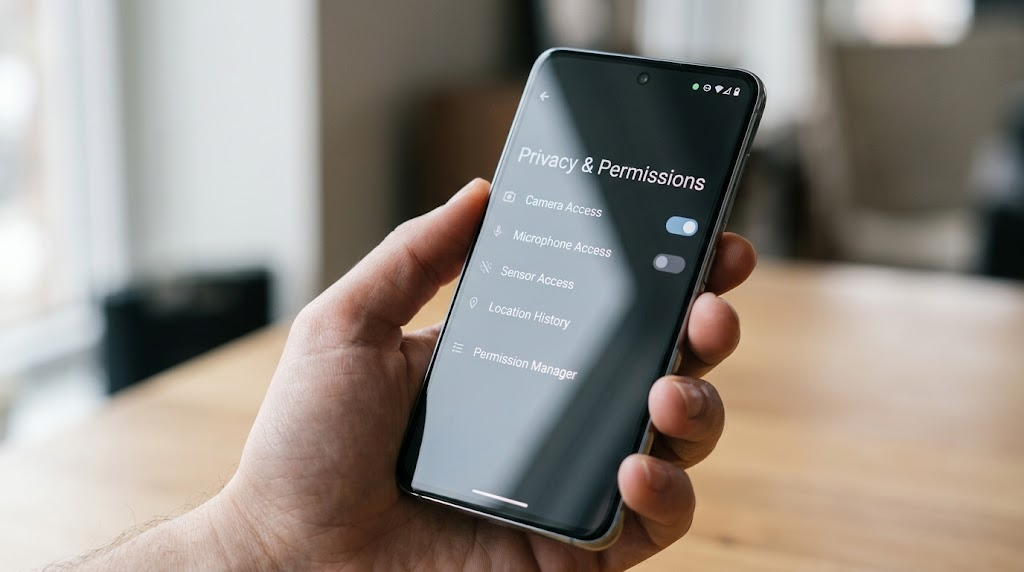
However, a camera or microphone indicator does not automatically mean someone is spying on you.
The activity might come from a video call, voice recording, application feature, or background process. It could also involve an app with permissions you no longer want it to have.
The most useful first step is to identify which app or service accessed the sensor.
See Also: Phone Security Checklist: 15 Settings to Change on iPhone and Android
This guide explains how to do that on Android and iPhone, how to review permissions, and when unexpected activity deserves further investigation.
Quick Answer: What Does an Unexpected Camera or Microphone Indicator Mean?
A camera or microphone privacy indicator is a visual notification that your phone’s operating system uses to show sensor activity.
Its purpose is to make camera and microphone access more visible.
For example, you might notice an indicator when:
- Opening your phone’s camera application.
- Participating in a video call.
- Recording a voice message.
- Using voice typing or another speech-input feature.
- Recording video inside a social media application.
- Using an application that accesses a sensor while running in the background.
The important distinction is between expected access and unexplained access.
If the microphone indicator appears while you’re recording a voice message, the behavior makes sense.
If it appears repeatedly while you’re browsing unrelated content, you have a reason to investigate.
That investigation should begin with your phone’s built-in privacy tools.
What should you check first?
On a supported Android phone, swipe down from the top of the screen while the green indicator is visible. Tap the indicator to see information about the application or service using the camera or microphone.
On an iPhone, open Control Center shortly after noticing the indicator. iOS can identify an application that recently used the camera or microphone.
Next, review the application’s permissions.
If the app has a legitimate reason to use the sensor, the activity may be normal. If the access does not match the application’s purpose, consider restricting its permissions and investigating further.
These features provide useful evidence, but their availability and level of detail depend on your device and software version.
What Do the Green and Orange Indicators Mean?
Android and iPhone use different privacy indicator systems.
Understanding those differences helps you interpret what you’re seeing.
Green Dot on Android: Camera or Microphone Access
On supported devices running Android 12 or later, Android displays a green privacy indicator when an application or service accesses the camera or microphone.
The indicator usually appears near the upper-right corner of the screen. Why Does My Phone Screen Turn On by Itself or Keep Restarting?
Depending on the device and interface, it may initially appear as a camera or microphone symbol before becoming a small green dot.
The indicator can represent:
- Camera access.
- Microphone access.
- Camera and microphone access occurring together.
The green dot alone does not necessarily tell you which sensor is active.
To investigate, swipe down from the top of the screen and tap the indicator where that interaction is supported.
Android can then show which application or service is using the relevant sensor.
For additional details, supported devices provide a Privacy Dashboard that records recent permission access.
Google documents these features in its Android camera and microphone indicator guidance.
However, Android interfaces vary.
A Samsung Galaxy phone may organize its settings differently from a Google Pixel or another Android device.
Older Android versions may also lack the same indicators or privacy-history features.
If your phone does not display the expected menus, search its Settings application for relevant privacy options.
Orange Dot on iPhone: Microphone Access
On iPhones running iOS 14 or later, an orange indicator means an application is using the microphone.
For example, you might see it while:
- Recording a voice memo.
- Sending an audio message.
- Making a voice call.
- Using a feature that listens for spoken input.
An orange indicator does not mean the camera is active.
Apple also allows the microphone indicator to appear as an orange square when the Differentiate Without Color accessibility setting is enabled.
This provides an alternative visual signal for users who may have difficulty distinguishing colors.
If the orange indicator appears unexpectedly, check which application recently used the microphone.
Apple explains these indicators in its iPhone privacy and security documentation.
Green Dot on iPhone: Camera Access
On an iPhone running iOS 14 or later, a green indicator means an application is using the camera, or the camera and microphone together.
You may see it while:
- Taking a photograph.
- Recording a video.
- Participating in a video call.
- Scanning a QR code through a camera-based feature.
- Using an application feature that requires live camera input.
A green indicator does not establish that photographs or videos are being secretly recorded.
It indicates camera access, which may occur for legitimate reasons.
Nevertheless, if the indicator appears when you are not intentionally using the camera, you should identify the responsible application.
Can the indicator remain visible after you stop using an app?
A privacy indicator reflects sensor activity reported by the operating system.
An application may continue using a sensor after you leave its main screen, depending on the app, operating-system rules, and active feature.
For example, a voice call may continue while you use another application.
A voice-recording application may also continue recording while you view a different screen.
Therefore, switching away from an app does not necessarily mean every feature has stopped.
The useful question is whether the sensor activity matches something you intentionally started.
If it does not, check the recent access information rather than relying only on the indicator’s appearance.
How to Check Which App Is Using Your Camera or Microphone on Android
If your Android camera indicator appears randomly, the quickest investigation begins while the indicator is still visible.
Android provides several ways to examine camera and microphone access, although exact menus differ by manufacturer and software version.
Check the Green Privacy Indicator
On supported Android 12 or later devices:
- Wait until the green camera or microphone indicator appears.
- Swipe down from the top of your screen.
- Locate the camera or microphone privacy indicator.
- Tap the indicator.
- Review the application or service identified by Android.
The information displayed may help you determine whether the camera, microphone, or both are being accessed.
For example, if you are recording an audio message and Android identifies the messaging application, that would be consistent with your activity.
If the indicator identifies an application you were not intentionally using, investigate its permissions and recent behavior.
Remember that the interface may look different on Samsung, Pixel, and other Android phones.
Open Android Privacy Dashboard
Android’s Privacy Dashboard allows users to review certain permissions and see when applications accessed them.
On many supported Android devices:
- Open Settings.
- Tap Security & privacy or Privacy.
- Select Privacy Dashboard.
- Choose Camera or Microphone.
- Review the applications and access times shown.
Some phones place Privacy Dashboard directly under Privacy.
If you cannot find it, use the Settings search bar and enter:
Privacy Dashboard
The dashboard can help answer questions such as:
- Which applications accessed my microphone?
- Did an application use my camera recently?
- Was the access consistent with something I was doing?
- Is an application using permissions I no longer need it to have?
Android’s permission-history period depends on the operating-system version.
For example, Android 12 introduced the Privacy Dashboard with a more limited recent history, while Android 13 expanded the available history to seven days.
Manufacturer interfaces and later software changes may affect how this information is presented.
Do not assume every Android phone stores or displays the same amount of activity history.
For platform guidance, see Google’s Android privacy and permission documentation.
Check Camera Permissions on Android
Once you identify an application, review whether it should have camera access.
On many Android devices:
- Open Settings.
- Select Apps.
- Choose the application you want to investigate.
- Tap Permissions.
- Select Camera.
- Review the available permission options.
- Choose a more restrictive setting if the application does not need camera access.
Depending on your Android version, permission options may include:
- Allow only while using the app.
- Ask every time.
- Don’t allow.
Not every permission option appears for every application or Android version.
For example, a photography application needs camera access to capture pictures.
A basic calculator generally has no obvious reason to request camera access.
That does not automatically make the calculator malicious, but the request deserves scrutiny.
Check Microphone Permissions on Android
You can review microphone permissions in a similar way.
- Open Settings.
- Go to Apps.
- Select the application.
- Open Permissions.
- Tap Microphone.
- Review or change the permission.
Alternatively, Android’s Permission manager lets you inspect applications by permission category.
On many phones, navigate to:
Settings → Security & privacy → Privacy → Permission manager
The exact path varies.
Select Microphone to see applications with the relevant permission status.
This approach is particularly useful when you do not know which application might be responsible.
Investigate Unfamiliar Android Applications
If Privacy Dashboard identifies an application you do not recognize, examine it before deciding what to do.
Open its application information page and check:
- Its full application name.
- Whether you remember installing it.
- Its requested permissions.
- Whether it has a legitimate function.
- Whether it came from a trusted source.
- Whether it has unusual administrative or accessibility privileges.
Some unfamiliar entries are legitimate system components.
Others may be applications installed by a phone manufacturer, mobile carrier, employer, or device administrator.
An unfamiliar name alone is not proof of spyware.
However, an unknown application with camera or microphone access and no understandable purpose deserves closer examination.
If the application is unnecessary, you may be able to revoke its permissions or uninstall it.
On managed work devices, consult your organization’s IT administrator before removing management components.
How to Identify Unexpected Camera or Microphone Access on iPhone
Apple provides privacy indicators and application-permission settings that can help identify unexpected sensor activity.
The general process is different from Android’s Privacy Dashboard.
Check the Indicator and Control Center
On iPhones running iOS 14 or later, the orange and green indicators provide immediate information about sensor use.
To investigate:
- Notice whether the indicator is orange or green.
- Open Control Center shortly after seeing it.
- Look for the application identified as recently using the camera or microphone.
- Note the application’s name.
- Decide whether that activity matches something you recently did.
To open Control Center:
- On iPhones with Face ID, swipe down from the upper-right corner.
- On iPhones with a Home button, swipe up from the bottom edge.
Control Center can display information about applications that recently accessed the camera or microphone.
However, this is not the same as a comprehensive, permanent activity log.
If the access occurred much earlier, Control Center may no longer provide the information you need.
For Apple’s explanation, consult Control access to hardware features on iPhone.
Check Camera Permissions on iPhone
If you suspect an application has unnecessary camera access:
- Open Settings.
- Select Privacy & Security.
- Tap Camera.
- Review the applications listed.
- Turn off camera access for applications that do not need it.
The list shows applications that have requested access to the camera.
For example, a video-calling application has a clear reason to request camera permission.
An application offering only simple text-based functionality may not.
Consider the features you actually use before changing permissions.
Check Microphone Permissions on iPhone
To review microphone access:
- Open Settings.
- Select Privacy & Security.
- Tap Microphone.
- Examine the applications listed.
- Disable microphone access for applications that do not need it.
Removing microphone permission can prevent certain functions from working.
For example, a messaging application may still send text messages but lose the ability to record voice messages until permission is restored.
That is expected behavior.
You can grant permission again if you decide the application needs it.
Use App Privacy Report Where Available
Another useful iPhone feature is App Privacy Report.
Apple introduced App Privacy Report in iOS 15.2.
On supported versions, it provides information about how applications access certain privacy-sensitive resources, including the camera and microphone.
To find it:
- Open Settings.
- Tap Privacy & Security.
- Scroll to App Privacy Report.
- Open the report.
- Enable it if it is not already active.
- Review the available sensor-access information after activity has been recorded.
App Privacy Report can show how often and when applications accessed certain permissions during the preceding seven days.
However, it does not retroactively reconstruct activity from before the reporting feature was enabled.
It also does not guarantee that every possible security issue will be identified.
Apple provides additional details in its iPhone User Guide.
What if you cannot identify the application?
If Control Center does not provide a useful answer, check Camera and Microphone permissions.
Then review App Privacy Report if your iPhone supports it.
Consider whether you recently used:
- A voice assistant.
- A video-calling feature.
- A voice-recording function.
- A browser-based camera feature.
- An application with audio or video capabilities.
If the indicator repeatedly appears without an identifiable cause, update iOS and the relevant applications.
If the issue continues, Apple Support can help investigate device-specific behavior.
How to Review Camera and Microphone Permissions
Applications request camera and microphone permissions because certain features need access to those sensors.
Permission requests are not inherently suspicious.
What matters is whether the access makes sense for the application’s function.
When Camera Access Is Legitimate
Camera access is commonly needed for photography, video recording, video calls, document scanning, and QR-code scanning.
Some applications also use cameras for identity verification or augmented-reality features.
For example, a banking application may request temporary camera access to scan a document or complete an identity-verification process.
A shopping application might request camera access to scan product barcodes.
These uses can be legitimate even when the application is not primarily a camera app.
However, the permission should still correspond to a feature you understand.
If you never use a camera-based feature, you may prefer to deny access until it is needed.
When Microphone Access Is Legitimate
Microphone access is necessary for many communication and audio features.
Examples include:
- Voice calls and video conferences.
- Audio recording.
- Voice messages.
- Speech recognition and dictation.
- Certain accessibility features.
- Applications that provide audio-based interaction.
A microphone indicator appearing during a voice call is expected.
An indicator appearing repeatedly when no relevant feature is active is less easily explained.
That does not establish malicious activity, but it creates a reasonable reason to check permissions.
Permission Does Not Always Mean Active Use
There is an important difference between an application having permission and actively using a sensor.
An application may have camera permission without currently accessing the camera.
Likewise, microphone permission does not mean the microphone is recording continuously.
Privacy indicators and activity reports can help distinguish actual reported access from permission status.
When reviewing an application, consider both:
- Whether the application is allowed to access the sensor.
- Whether its recorded or observed activity matches your expectations.
This provides a better basis for decisions than permission status alone.
Should You Remove Every Camera and Microphone Permission?
No.
Removing permissions indiscriminately can interfere with useful features.
Instead, apply a simple rule:
Allow access when an application needs it for a feature you use, and restrict access when there is no clear reason for it.
On supported Android devices, you may be able to require an application to ask for permission each time.
On iPhone, you can turn individual application permissions on or off.
Review these settings periodically, especially after installing unfamiliar applications or changing how you use an app.
What to Do When the Indicator Appears With No Obvious App Open
An unexpected privacy indicator can be confusing when you’re simply looking at the home screen or browsing an unrelated application.
The best response is a structured investigation.
Step 1: Check Recent Camera or Microphone Activity
Start with the operating system’s built-in tools.
On Android, tap the current privacy indicator where supported, or open Privacy Dashboard.
On iPhone, check Control Center and App Privacy Report where available.
Try to identify:
- The application or service.
- The sensor involved.
- The approximate access time.
- Whether the activity matches something you recently did.
This information is more useful than interpreting the colored dot in isolation.
Step 2: Identify the Application or Service
Once you have a name, determine what it does.
An application may use a sensor for a feature that continues after you leave its screen.
For example, an ongoing call can require microphone access while another application is visible.
Some background behavior is expected, but its availability depends on operating-system restrictions and the application’s design.
Avoid assuming that every background access is unauthorized.
At the same time, do not dismiss repeated activity simply because the application is familiar.
Check whether the specific behavior makes sense.
Step 3: Review Its Permissions
Open the application’s permission settings.
Determine whether camera or microphone access is necessary for the features you use.
If not, revoke the unnecessary permission.
If the application requires permission for an occasional feature, consider using a more restrictive permission option where available.
On Android, an “Ask every time” option may be available.
On iPhone, you can disable access and grant it again when needed.
Step 4: Close the Application Normally
If you suspect an application is responsible, stop the feature that might be using the sensor.
For example:
- End an active call.
- Stop a recording.
- Close an active camera interface.
- Exit a feature that requires live audio or video.
Then check whether the indicator disappears.
If appropriate, close the application using the phone’s normal app-switching interface.
Be aware that removing an app from the recent-apps screen does not always terminate every associated process or service.
Observe whether the unexplained indicator returns.
Step 5: Update Your Phone and Applications
Software updates can fix bugs, improve compatibility, and address security vulnerabilities.
On Android, check for operating-system updates through Settings.
The exact menu depends on your manufacturer.
Many devices place this option under System → Software update, while Samsung devices commonly provide a Software update section directly within Settings.
On iPhone, open:
Settings → General → Software Update
Install appropriate available updates.
Also update the application associated with the unexpected activity.
An application bug can sometimes produce confusing behavior, although you should not assume that every unexplained indicator is caused by a software defect.
Step 6: Investigate Unfamiliar Applications
Review recently installed applications, particularly those with camera or microphone access.
Look for applications you do not recognize or no longer need.
Check their permissions and installation source.
On Android, Google Play Protect can help identify certain potentially harmful applications.
You can generally access Play Protect through the Google Play Store’s profile menu.
For official information, see Google Play Protect Help.
Play Protect is a useful security layer, but no scanner guarantees detection of every malicious application.
On iPhone, review installed applications and relevant privacy settings.
Apple’s application-security architecture differs from Android’s, so troubleshooting should use tools appropriate to iOS rather than assuming both platforms expose identical controls.
Step 7: Seek Support if the Activity Remains Unexplained
If the indicator repeatedly appears and you cannot identify a reasonable cause, contact your phone manufacturer’s support service.
You can explain:
- Your phone model.
- Your operating-system version.
- Which indicator appears.
- When it appears.
- What the privacy tools report.
- Which troubleshooting steps you have completed.
This information helps support staff distinguish between expected system behavior, an application problem, and a potential security concern.
Could Spyware Be Accessing Your Camera or Microphone?
Yes, malicious monitoring software can potentially attempt to access camera or microphone functionality.
However, a privacy indicator alone cannot establish that spyware is present.
Spyware is software designed to collect information or monitor activity without appropriate authorization.
Some malicious applications attempt to obtain sensitive permissions or abuse access granted by the user.
Other attacks involve compromised accounts, device-management features, or operating-system vulnerabilities.
These situations are not interchangeable.
A camera indicator tells you something about sensor access reported by your operating system. It does not independently identify the intent behind that access.
What Signs Deserve More Investigation?
Concern becomes more reasonable when unexpected sensor activity appears alongside other concrete evidence.
Examples include an unfamiliar application with camera or microphone permission and no plausible purpose.
Another concern is an unknown application possessing unusually powerful privileges.
On Android, certain accessibility services or device-administration capabilities can provide extensive control.
These features have legitimate uses, including accessibility support and enterprise device management.
But permissions granted to an unknown application deserve scrutiny.
On iPhone, an unfamiliar configuration profile or mobile-device-management enrollment on a personally owned device may also warrant investigation.
Device management is commonly used by employers and schools, so its presence is not automatically suspicious.
Other reasons to investigate include:
- Credible security warnings from the operating system or a trusted security provider.
- Unexplained changes to important account-security settings.
- Unknown devices signed into your accounts.
- Evidence that someone else has access to your unlocked phone.
- Repeated unexplained sensor access associated with an unknown application.
No single item conclusively proves spyware.
The overall pattern matters.
Can Spyware Hide Camera or Microphone Activity?
Privacy indicators are useful protections, but they should not be treated as comprehensive spyware detectors.
They report sensor access through the mechanisms implemented by the operating system.
A severely compromised device may not provide fully trustworthy security information.
Likewise, monitoring that relies on cloud accounts, location sharing, or access to synchronized messages may not require camera or microphone access at all.
Therefore, the absence of an indicator does not guarantee that every possible form of unauthorized monitoring has been ruled out.
Conversely, seeing an indicator does not mean that advanced spyware is operating.
The most productive response is to investigate the application and its permissions.
Can a Website Scan My Phone for Spyware?
A normal website cannot perform a comprehensive spyware scan simply because you open it.
Modern mobile browsers restrict websites from freely inspecting installed applications, system files, and private operating-system data.
Websites may request access to certain features, such as the camera or microphone, through browser permission mechanisms.
That is different from conducting a system-wide security inspection.
Be cautious of websites claiming they have detected spyware after a brief browser-based scan.
Claims that a web page can identify hidden surveillance software without meaningful device access should be treated skeptically.
For actual troubleshooting, use built-in operating-system security features, trusted support resources, and qualified technical assistance.
What If You Suspect Someone Is Monitoring Your Phone?
Unexpected camera or microphone activity may raise broader concerns about unauthorized monitoring.
If you suspect someone has access to your phone or accounts, it is important to distinguish the different ways information can be exposed.
Not all monitoring involves spyware.
Unauthorized Applications
Someone with physical access to an unlocked phone may be able to install applications or change settings, depending on the device and its security protections.
On Android, investigate unknown applications and sensitive permissions.
On iPhone, review installed applications, privacy permissions, and device-management settings.
Avoid assuming that an unfamiliar system component is malicious.
If you are uncertain, consult manufacturer documentation or a qualified technician.
Compromised Accounts
Someone who can access your Apple Account, Google Account, email, or another online account may be able to obtain information without activating your phone’s camera or microphone.
For example, access to synchronized photographs or cloud-stored information does not necessarily require direct control of the phone’s sensors.
Review account-security alerts, signed-in devices, and recovery information when appropriate.
If you find unauthorized access, secure the account using the provider’s official recovery and security procedures.
Location Sharing and Synchronization
Location-sharing features can also expose information.
This is separate from camera or microphone access.
Someone might have access to location data through an intentionally shared feature, a family-sharing arrangement, or an account they can access.
The microphone indicator would not necessarily reveal that type of monitoring.
On iPhone, Apple’s Safety Check feature can help users review certain sharing and access arrangements.
Apple documents it in its Personal Safety User Guide.
Google also provides account and device-security controls for reviewing access to Google services.
When Changing Settings Could Create a Safety Risk
If you suspect monitoring by a partner, former partner, family member, or another person who might retaliate, consider your physical safety before changing access.
Removing an application, disabling location sharing, changing account passwords, or resetting a phone may be noticeable to someone who previously had access.
In some circumstances, unexpected changes could increase personal risk.
If that possibility concerns you, seek advice from a specialist technology-safety or domestic-abuse support organization.
Use a device and communication method the potentially monitoring person cannot access.
The National Network to End Domestic Violence’s Safety Net Project provides technology-safety resources relevant to stalking, harassment, and abuse.
You do not need to confront a suspected person to begin seeking help.
Should You Factory-Reset Your Phone?
A factory reset is not the appropriate first step for every unexpected camera or microphone indicator.
Resetting a device removes local data and applications, depending on the platform and reset procedure.
It can also erase evidence that might be useful in a security investigation.
Furthermore, a reset does not automatically secure compromised online accounts or stop unwanted access through legitimate sharing arrangements.
Start by identifying the application, reviewing permissions, and investigating concrete evidence.
If a reset becomes necessary, plan how to preserve important information, secure accounts, and restore the phone safely.
If stalking or abuse is a concern, seek specialist advice before making changes that could alert another person.
How to Reduce Unnecessary Camera and Microphone Access
You can reduce unnecessary sensor access without disabling useful smartphone features.
The goal is to give applications only the permissions they reasonably need.
Review Application Permissions Regularly
Periodically open your phone’s privacy settings and review camera and microphone permissions.
Pay particular attention to applications you rarely use.
An application that needed microphone access for a feature you tried months ago may no longer need that permission.
On Android, use Permission manager or the equivalent manufacturer interface.
On iPhone, review the Camera and Microphone categories under Privacy & Security.
Remove unnecessary access while preserving permissions required for features you use.
Use Android’s Camera and Microphone Controls
Supported Android devices offer system-wide camera and microphone access controls.
On many Android 12 or later phones, you can find Camera access and Microphone access controls in Quick Settings or privacy-related settings.
These controls can restrict access to the corresponding sensor across applications, subject to platform-specific behavior and exceptions.
To locate them:
- Swipe down to open Quick Settings.
- Expand the panel if necessary.
- Look for Camera access and Microphone access.
- Use the available controls when you want to restrict sensor access.
- Restore access when a legitimate feature requires it.
If the controls are not visible, check the available Quick Settings tiles or search Settings.
The exact interface depends on your device.
These controls are useful privacy tools, but they are not substitutes for reviewing applications and account security.
Manage Permissions on iPhone
On iPhone, camera and microphone permissions can be managed individually for applications.
Open:
Settings → Privacy & Security
Then choose Camera or Microphone.
Disable access for applications that do not need the relevant sensor.
If an application later requires that permission, iOS may direct you to Settings to restore access.
This gives you control without requiring you to uninstall the application.
Keep Your Operating System Updated
Operating-system updates can include security fixes and privacy improvements.
Enable appropriate automatic-update settings where practical.
Also keep important applications updated.
This reduces exposure to known vulnerabilities and may resolve application compatibility problems.
Updates cannot guarantee complete protection against every threat, but they are an important part of routine device security.
Install Applications From Trusted Sources
Use reputable application sources.
For Android, Google Play provides application-security protections, including Play Protect.
Some Android devices also support other legitimate application stores, but installing software from unfamiliar sources can introduce additional risks.
On iPhone, follow Apple’s supported application-installation and security guidance for your region and software version.
Regardless of platform, review an application’s purpose and developer before installing it.
A trustworthy distribution channel reduces certain risks but does not guarantee that every application will behave exactly as expected.
Question Permissions That Do Not Match an App’s Purpose
Consider whether a permission request is necessary for the feature you want to use.
For example, a video-calling application requesting microphone access is understandable.
A simple flashlight application requesting continuous microphone access would deserve closer examination.
There may be unusual applications with legitimate reasons for unexpected permissions, so investigate rather than immediately assuming malicious intent.
When permission is optional, denying it is often a reasonable starting point.
Protect Access to Your Phone and Accounts
Use a strong device passcode and enable available account-security protections.
Review devices signed into your important accounts.
Avoid sharing account passwords unnecessarily.
Where supported, use multifactor authentication to make unauthorized account access more difficult.
Remember that camera and microphone indicators address only one part of mobile privacy.
Account access, physical device access, cloud synchronization, and location sharing require separate attention.
A Step-by-Step Checklist for Unexpected Sensor Activity
If your camera or microphone indicator appears without an obvious reason, follow this checklist.
- Identify the indicator. On supported Android phones, green indicates camera or microphone access. On iPhone, orange indicates microphone use, while green indicates camera use, potentially alongside the microphone.
- Check the responsible application. On Android, tap the privacy indicator or open Privacy Dashboard. On iPhone, check Control Center and App Privacy Report where available.
- Compare the activity with what you were doing. Consider calls, recordings, voice input, video features, and other legitimate uses.
- Review permissions. Check whether the application needs camera or microphone access.
- Restrict unnecessary access. Revoke permissions that do not match the application’s purpose.
- Stop the relevant feature. End calls or recordings, close the application normally, and observe whether unexpected activity returns.
- Update your software. Install appropriate operating-system and application updates.
- Investigate unfamiliar applications. Review their purpose, permissions, installation source, and any unusual privileges.
- Check broader security concerns if needed. Review account access, device management, and sharing settings when concrete evidence suggests a problem.
- Seek qualified help when appropriate. Contact manufacturer support for unexplained technical behavior or specialist technology-safety support when personal safety may be involved.
The objective is to identify the source of the activity before deciding whether further action is necessary.
Frequently Asked Questions
Why is the green dot appearing on my Android phone?
On supported Android devices running Android 12 or later, a green privacy indicator appears when an application or service accesses the camera or microphone.
It may appear during calls, recordings, camera use, or other sensor-dependent features.
If it appears unexpectedly, swipe down and tap the indicator where supported to identify the associated application or service.
You can also check Privacy Dashboard for recent permission activity.
What does the orange dot mean on an iPhone?
On iPhones running iOS 14 or later, an orange indicator means an application is using the microphone.
It does not indicate camera access.
The indicator may appear during calls, voice recordings, dictation, or other microphone-dependent activities.
If you cannot explain it, check Control Center for recent activity and review microphone permissions under Settings → Privacy & Security → Microphone.
Does the green dot on an iPhone mean someone is watching me?
No.
A green indicator on an iPhone means an application is using the camera, or the camera and microphone together.
It does not establish that another person is watching or recording you.
The activity could come from a legitimate application feature.
If the indicator appears unexpectedly, identify the application and check whether its access makes sense.
How can I tell which app is using my camera?
On supported Android phones, tap the camera or microphone privacy indicator while it is active.
You can also open Privacy Dashboard and inspect camera access history.
On iPhone, open Control Center shortly after noticing the green indicator.
You can additionally review Camera permissions and App Privacy Report where supported.
The exact information available depends on your phone and operating-system version.
Can an app use my microphone without my knowledge?
An application may use the microphone while running in the background if the operating system permits that behavior and the necessary access has been granted.
Supported Android and iPhone versions provide privacy indicators to make microphone activity more visible.
However, these indicators are not comprehensive guarantees against every possible form of device compromise.
Review microphone permissions and activity history if you notice unexplained access.
Does a camera indicator mean I have spyware?
No.
A camera indicator means the operating system is reporting camera-related sensor access.
It does not determine whether the application is trustworthy or malicious.
Spyware is one possible security concern, but legitimate applications and system features can also activate the indicator.
Investigate the responsible application before drawing conclusions.
How do I stop an app from accessing my microphone?
On Android, open the application’s information page, select Permissions, and change its microphone access.
You can also use Permission manager.
On iPhone, open Settings → Privacy & Security → Microphone and disable access for the application.
Removing microphone permission may prevent voice recording, calls, dictation, or other audio features from working within that application.
Why does my microphone indicator appear when I’m not using an app?
The microphone may be associated with an ongoing feature, such as a call, recording, or voice-input function.
Some applications can continue permitted audio activity when their main interface is no longer visible.
However, unexpected access should be checked rather than automatically considered normal.
Identify the responsible application using your phone’s privacy tools and review its permissions.
Can a website secretly scan my phone for spyware?
A normal website cannot perform a comprehensive scan of your phone’s installed applications and protected system files simply by being opened.
Mobile browsers restrict that level of access.
Be skeptical of websites that claim to have detected spyware through an instant online scan.
Use official device-security tools and qualified support instead.
Should I delete an unfamiliar app immediately?
Not necessarily.
Some unfamiliar applications are legitimate operating-system components, manufacturer utilities, accessibility services, or organization-managed tools.
First, examine the application’s purpose, permissions, and installation source.
If you determine that it is unnecessary or suspicious, consider restricting its permissions or uninstalling it.
If you suspect stalking or abuse, consider whether removal could alert another person before making changes.
Can my phone camera turn on without the indicator appearing?
On supported operating systems, privacy indicators are designed to make camera access visible.
However, their behavior depends on the platform, software version, and implementation.
A compromised operating system may not provide trustworthy security reporting.
Additionally, unauthorized access to cloud-stored photographs or account information does not require live camera access.
Therefore, the absence of an indicator should not be interpreted as proof that every possible privacy risk has been eliminated.
Does the Android green dot mean my microphone is recording?
Not necessarily.
On supported Android devices, the green indicator can represent camera access, microphone access, or both.
You need to inspect the indicator’s details or relevant privacy settings to determine which sensor is involved.
Even when microphone access is reported, the indicator alone does not establish whether audio is being saved, transmitted, or used temporarily by an application feature.
Can I disable the green privacy dot on Android?
Android’s privacy indicators are designed to inform users about sensitive sensor access.
You should not assume that every Android phone provides a supported option to disable the indicators themselves.
If your goal is to stop unwanted sensor activity, review application permissions or use supported camera and microphone access controls.
Disabling legitimate sensor access is different from hiding the privacy notification.
Why does the indicator appear when I open certain websites?
Some websites use camera or microphone features for video meetings, voice recording, identity verification, or other interactive functions.
When a website accesses a sensor through your browser, the operating system may display its privacy indicator.
Review the browser’s site permissions and the permissions granted to the browser application.
If the website does not need the sensor, deny or revoke access.
Can microphone or camera access drain my battery?
Camera and microphone activity uses device resources, and certain sensor-dependent functions can contribute to battery consumption.
However, a brief privacy indicator does not establish that sensor access is causing significant battery drain.
Battery usage depends on many factors, including screen activity, background processing, network connections, and application behavior.
If your phone is also overheating or losing charge unusually quickly, investigate battery usage separately rather than treating those symptoms as proof of spyware.
Should I contact my phone manufacturer?
Manufacturer support is appropriate when the indicator repeatedly appears without an understandable cause and normal troubleshooting does not resolve the issue.
Before contacting support, note your device model, software version, indicator behavior, and any applications identified by privacy settings.
These details can help support staff investigate the problem more efficiently.
Final Thoughts
When your phone’s camera or microphone indicator turns on randomly, the most important step is to identify the application or service responsible for the access.
On supported Android phones, use the privacy indicator and Privacy Dashboard.
On iPhone, check Control Center, application permissions, and App Privacy Report where available.
Then compare the reported activity with the application’s legitimate functions.
An unexpected indicator deserves attention, but it is not proof that someone is watching, listening, or using spyware.
Review permissions, restrict access that is not needed, keep your software updated, and investigate repeated unexplained behavior using evidence rather than assumptions.
If you discover unfamiliar applications, unusual privileges, or credible signs of unauthorized account access, a broader device-security investigation may be appropriate.
For readers who want to understand how malicious monitoring software works, the next step is a comprehensive phone-spyware guide covering potential warning signs, account security, device permissions, and safe investigation methods.
Pingback: Why Is My Phone Battery Draining Fast or Overheating? Causes and Fixes – Perlon Tech